 Skip to content

Published on August 21, 2025 by SNSPro Global
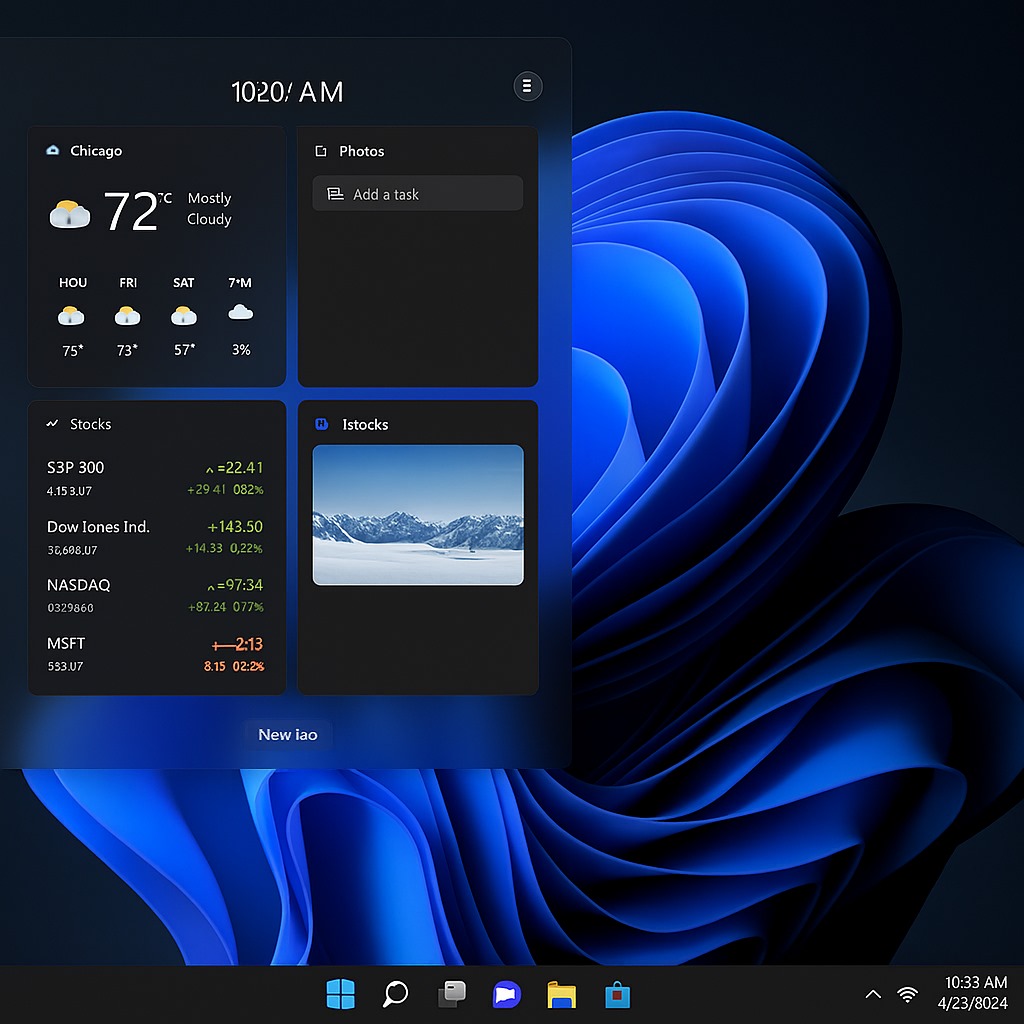
Customizing your Windows 11 interface means transforming your PC into a workspace that feels unique, productive, and visually appealing. With its sleek design and powerful personalization tools, Windows 11 lets you tweak everything from wallpapers and themes to taskbar layouts and advanced widgets.
In this complete step by step guide, you’ll learn how to customize your Windows 11 interface, explore built in personalization settings, and unlock the best third party apps to make your computer truly yours.
Why Personalize Windows 11?
A personalized Windows 11 desktop goes beyond aesthetics—it directly impacts productivity and ease of use. By adjusting themes, colors, and layouts, you can:
- Reduce distractions and visual clutter.
- Access your most used apps and files instantly.
- Improve concentration with tailored workflows.
- Create a workspace that reflects your personality.
Whether you’re a student juggling assignment, a designer working with creative tools, or a gamer who wants a sleek setup, customizing your Windows 11 interface ensures your PC performs just the way you like.
Step by Step Guide: How to Customize Windows 11 Interface
- Change Windows 11 Desktop Background & Lock Screen
Go to Settings > Personalization > Background to choose a solid color, image, or slideshow. For more variety, explore Microsoft Store themes.
For your lock screen, open Settings > Personalization > Lock screen. You can pick a custom image, rotating slideshow, or Windows Spotlight, which updates with fresh backgrounds daily. - Enable Dark Mode, Accent Colors, and Themes
Navigate to Settings > Personalization > Colors. Here, you can:
• Switch Modes: Toggle between light, dark, or custom appearance.
• Choose Accent Colors: Highlight Start Menu, Taskbar, and window borders with your preferred color.
• Install Themes: Visit the Microsoft Store to download free or premium Windows 11 themes for a fresh look. - Customize the Taskbar & Start Menu
Right click on the taskbar → Taskbar settings. Options include:
• Align the Start Menu left or center.
• Hide or show icons like Search, Widgets, or Task View.
• Pin essential apps for quick access.
For deeper tweaks, third party tools like Start11 allow you to replicate Windows 10’s Start Menu or create custom layouts. - Organize with Snap Layouts & Virtual Desktops
Windows 11’s Snap Layouts boost productivity by easily dividing windows into preset arrangements. Hover over a window’s maximize button to choose a layout.
To separate projects, use Virtual Desktops via Task View (Win + Tab). For example:
• Work Desktop (Productivity apps)
• Gaming Desktop (Steam, Discord, Xbox)
• Creative Desktop (Photoshop, Premiere Pro) - Add Widgets & Third Party Personalization Tools
Windows 11 Widgets give quick access to weather updates, news, and your calendar. But for advanced customization, try:
• Rainmeter – Create live system monitors, clocks, and minimalistic widgets.
• RoundedTB – Adjust taskbar shape, size, and transparency.
• Start11 – Customize Start Menu and taskbar beyond Microsoft’s limits.
Top Productivity Tips for Customizing Windows 11
- Use Dark Mode for reduced eye strain.
- Create multiple desktops for focus and task management.
- Pin frequently used folders and apps to Start Menu.
- Try dynamic wallpapers for a fresh look without manual changes.
Frequently Asked Questions (FAQs)
Does customizing Windows 11 slow down performance?
No, basic personalization changes have little impact. Third party apps or heavy skins may slightly affect performance depending on your system.
How do I restore the default Windows 11 interface?
Go to Settings > Personalization > Themes and select the original Windows 11 theme.
Are third party Windows 11 customization tools safe?
Yes, if you download from trusted developers. Stick to popular tools with strong community feedback.
Which customization boosts productivity the most?
Snap Layouts and Virtual Desktops are top features, helping you stay organized and multitask efficiently.
Can I make Windows 11 look like Windows 10?
Yes, with apps like Start11, which replicate the classic Windows 10 Start Menu and taskbar style.
What are the best apps for customizing Windows 11?
Rainmeter (custom widgets), RoundedTB (taskbar tweaks), and Start11 (Start Menu personalization) are highly recommended.
How do I customize Windows 11 without third party software?
You can fully adjust wallpapers, themes, accent colors, taskbar alignment, and Snap Layouts directly in Windows Settings.
How to avoid performance issues while personalizing Windows 11?
Stick to lightweight themes, avoid resource heavy skins, and limit startup apps.
Transform Your Windows 11 Interface
Customizing your Windows 11 interface is more than a visual upgrade—it’s a way to create a PC environment that reflects your style, improves productivity, and enhances everyday use. By using built in personalization features and exploring trusted third party tools, you can design a workspace that feels modern, organized, and uniquely yours.
Whether you’re upgrading for work, school, or gaming, Windows 11 personalization ensures your computer looks great and works smarter.