 Skip to content

Published on October 29, 2025 by SNSPro Global
Introduction
Your WiFi signal shows full bars, yet your connection keeps cutting out — frustrating, right?
If you’ve ever wondered, “Why does my WiFi keep disconnecting even when the signal is strong?”, you’re not alone. At SNSPRO GLOBAL, we’ve helped thousands of users solve the same issue.
In most cases, the culprit isn’t your internet provider — it’s something simple, like router overload, firmware issues, or interference from nearby devices.
Before diving in, you can also explore our Ultimate Home Wi-Fi Troubleshooting Guide for a detailed step-by-step walkthrough of diagnosing home Wi-Fi issues yourself.
Quick Answer (for AI Overview & Featured Snippets)
- WiFi keeps disconnecting even with a strong signal because of router overload, outdated firmware, signal interference, or incorrect power settings.
- Restart your router, update firmware, limit connected devices, and place your router in an open area to restore stability.
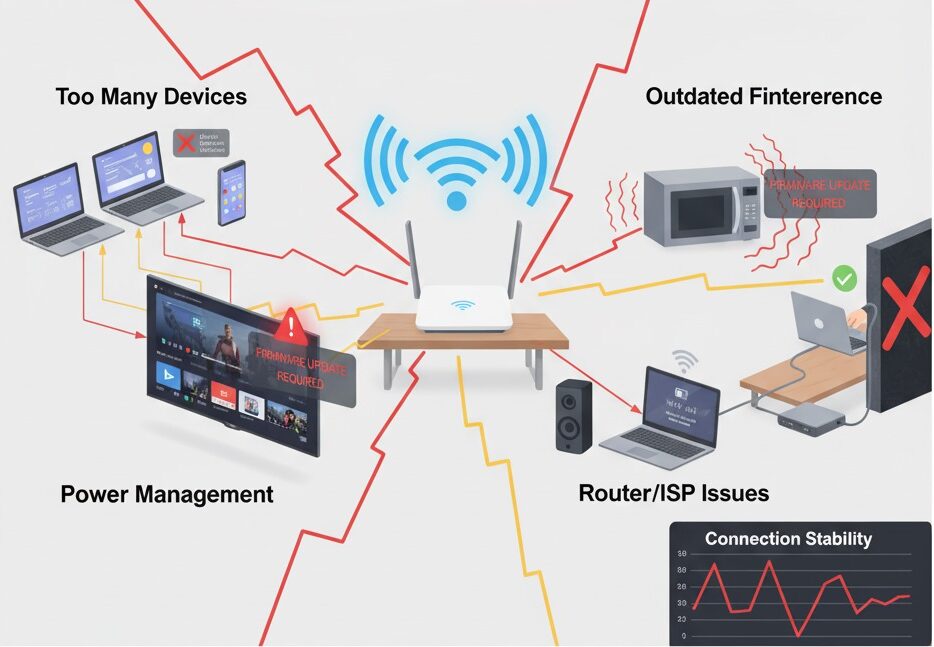
Common Reasons Your WiFi Disconnects
- Too Many Devices Connected
- When too many gadgets — phones, smart TVs, security cameras, and IoT devices — share one router, your network gets congested. Even with strong bars, your WiFi may drop connections or slow down.
- Disconnect unused devices or consider upgrading to a dual-band router that can handle heavier traffic.
- If you use a smart home setup, read our Practical Steps to Monitor IoT Devices on Your Home Wi-Fi to learn how to track and balance network loads effectively.
- Outdated Router Firmware
- Firmware is like your router’s mini operating system. When it’s outdated, it can’t fix bugs or keep up with new WiFi standards.
- Visit your router’s admin panel or brand app to update firmware.
- Our Ultimate Home Wi-Fi Troubleshooting Guide also explains how to perform firmware checks safely — perfect if you’re not tech-savvy.
- WiFi Interference from Other Devices Cordless phones, Bluetooth speakers, microwaves, or even neighboring WiFi networks can interrupt your signal.
- Move your router away from large appliances or thick walls to reduce interference.
- If your home includes multiple smart devices, you might experience more interference. Our Complete Smart Home Guide explains how to troubleshoot connectivity issues between smart lights, hubs, and IoT sensors that may interfere with your Wi-Fi stability.
- Power Management Settings
- Laptops, tablets, and smartphones often switch off Wi-Fi when idle to save power. This feature, called Wi-Fi sleep mode, can cause unexpected drops.
- Turn off Wi-Fi power-saving mode under your device’s network adapter settings.
- You’ll find more device-specific troubleshooting steps in our Ultimate Home Wi-Fi Troubleshooting Guide.
- Router or ISP Problems
- If every device in your home experiences dropouts, the issue may stem from your ISP or an aging router.
- Try connecting directly via Ethernet or mobile hotspot. If your connection stabilizes, your router or provider is likely at fault.
- To learn how to isolate ISP vs. hardware issues, see our detailed Smart Device Connectivity Troubleshooting Guide.
How to Fix WiFi That Keeps Disconnecting
- Restart your router and modem every two weeks.
- Forget and reconnect to your Wi-Fi network.
- Update router firmware regularly.
- Reduce interference by relocating the router.
- Limit the number of connected devices.
- Reset network settings if issues persist.
Still facing drops? Follow our in-depth Ultimate Wi-Fi Troubleshooting Guide for advanced fixes.
When to Call a Tech Expert
If your Wi-Fi still disconnects despite resets and updates, you may have deeper issues like driver conflicts, IP address errors, or hardware faults.
That’s where SNSPRO GLOBAL can help.
Our remote experts can securely connect, diagnose, and stabilize your home network within minutes — without the need for an in-person visit.
Conclusion
A strong Wi-Fi signal doesn’t always mean a stable connection. Common culprits include router overload, firmware bugs, and interference from smart devices.
With proper troubleshooting — and insights from our Ultimate Home Wi-Fi Troubleshooting Guide, IoT Device Monitoring Guide, and Smart Device Connectivity Guide — you can easily restore a stable connection and prevent future drops.
For persistent issues, contact SNSPRO GLOBAL for 24/7 remote Wi-Fi support — quick, reliable, and expert-backed.
Frequently Asked Questions (FAQs)
Why does my Wi-Fi keep disconnecting even with a strong signal?
It usually happens because of router overload, outdated firmware, or nearby interference. Restart your router and update its software.
How do I stop my Wi-Fi from disconnecting automatically?
home-wi-fi-troubleshooting-guide-router-smartphone Disable Wi-Fi sleep or power-saving features, reduce interference, and update firmware. Learn more in our Home Wi-Fi Troubleshooting Guide
Can too many devices cause Wi-Fi to drop?
Yes. Multiple connected devices split your bandwidth. Disconnect unused ones or upgrade to a dual-band router. Read more about balancing devices in our IoT Monitoring Guide.
How often should I restart my router?
Every two weeks. It clears memory and prevents overheating or software lags.
When should I replace my Wi-Fi router?
Every 3–5 years or when your model can’t support newer Wi-Fi standards like Wi-Fi 6.
If you have any questions or require further assistance.