 Skip to content

Published on August 21, 2025 by SNSPro Global
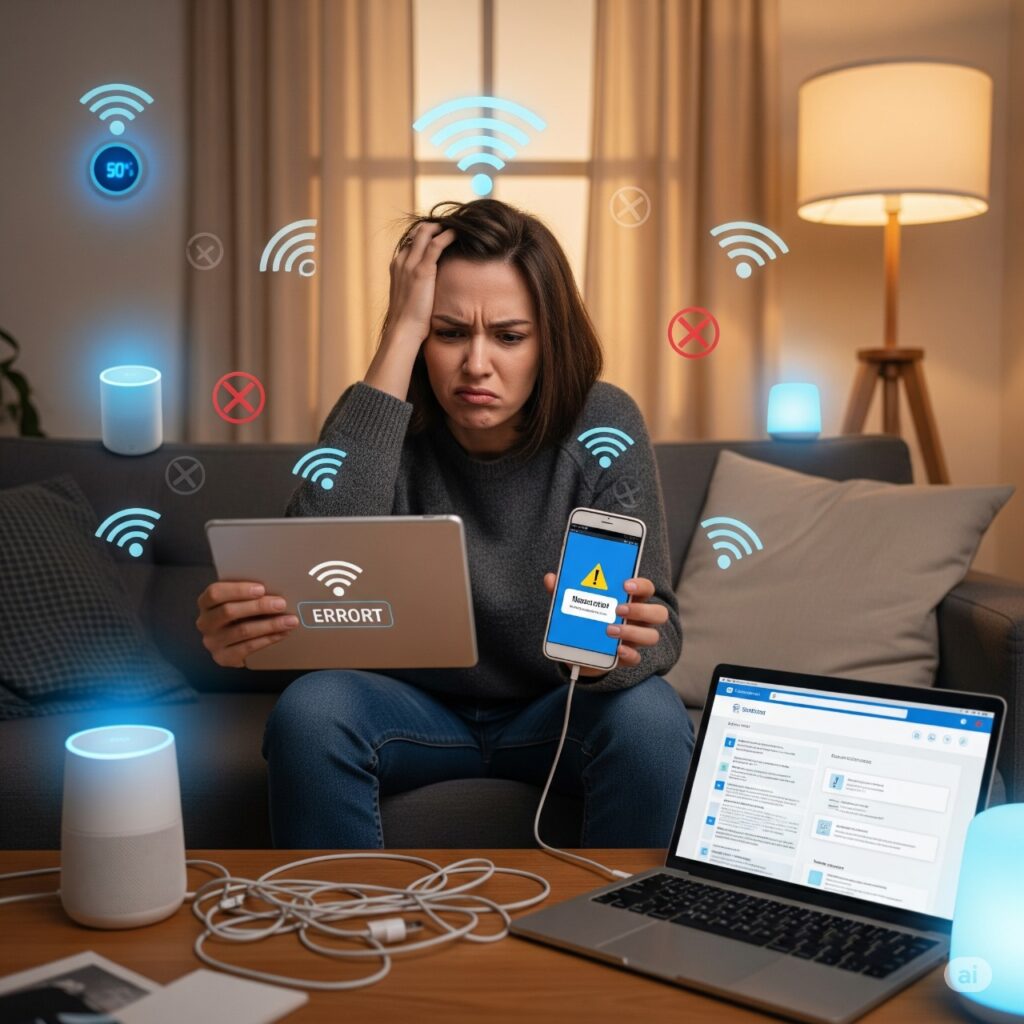
Do your smart home devices keep disconnecting from Wi-Fi or refuse to connect at all? Whether it’s a smart speaker, thermostat, camera, or smart plug, connectivity issues can be frustrating.
This guide will walk you through how to fix smart device connectivity issues step by step. From common Wi-Fi problems to advanced troubleshooting, you’ll learn how to keep your devices online and your smart home running smoothly.
Why Won’t My Smart Device Connect to Wi-Fi? [Top Fixes]
- One of the most common smart device connectivity problems is failure to connect to your Wi-Fi network. Here are the main reasons:
- Incorrect Wi-Fi Credentials – Double-check your Wi-Fi name (SSID) and password. Remember, passwords are case-sensitive.
- Weak Wi-Fi Signal – If your smart device is far from the router, the signal may be unstable. Consider moving the device closer or using a Wi-Fi extender.
- Network Compatibility – Many smart devices only support the 2.4 GHz band, not 5 GHz. Make sure you’re connecting to the correct frequency.
- Too Many Devices – Some routers limit the number of devices. Disconnect unused devices to free up space.
- IP Address Conflicts – Two devices may be trying to use the same IP. Restarting your router and device usually resolves this.
Troubleshooting Specific Smart Device Problems
- Not all devices fail the same way. Here are device-specific fixes:
- Smart Speakers (Alexa, Google Home)
- Power Cycle: Unplug for 30 seconds, then plug back in.
- Check App Status: Use the companion app to re-add or refresh the device.
- Smart Speakers (Alexa, Google Home)
- Smart Thermostats
- Check Power/Battery: Replace batteries or ensure wiring is secure.
- Signal Strength: Weak signals may require a Wi-Fi extender.
- Smart Cameras
- Factory Reset: Hold the reset button to restore default settings.
- Re-Pairing: Re-enter Wi-Fi credentials via the device app.
- Smart Plugs & Bulbs
- Enter Pairing Mode: Often requires a reset sequence.
- On/Off Reset: For bulbs, toggle on/off quickly (usually 3 times).
- Consult Manual: Each brand has specific pairing instructions.
Advanced Smart Home Connectivity Fixes
- If the above doesn’t work, try these advanced troubleshooting steps:
- Reboot Your Router: Power cycle your router to refresh connections.
- Update Firmware: Check for updates in the device app. Outdated firmware causes connectivity problems.
- Change Wi-Fi Channels: Reduce interference by switching to a less congested channel in router settings.
- Consider a Mesh Wi-Fi System: For larger homes, mesh systems provide consistent coverage.
- Contact Support: If all else fails, reach out to the manufacturer.
FAQs: Fixing Common Smart Device Wi-Fi Problems
How do I know if my smart device is offline?
Most smart home apps display “offline” or “disconnected.” Some devices also flash a red or blinking light when not connected.
Why does my smart device keep disconnecting?
Frequent disconnections usually mean weak Wi-Fi, interference from other devices, or too many devices on your network.
Do smart devices work better on 2.4 GHz or 5 GHz Wi-Fi?
Most smart devices prefer 2.4 GHz Wi-Fi since it has better range, even though 5 GHz is faster. Use 2.4 GHz for smart devices and 5 GHz for laptops/phones.
Can outdated routers cause smart home connectivity issues?
Yes. Older routers may struggle with multiple devices. Upgrading to a modern dual-band or mesh router helps.
Why won’t my smart bulb pair with the app?
Smart bulbs need to be in pairing mode. This often requires a quick on/off reset sequence. Check the manual for the correct steps.
Can a VPN cause problems with smart devices?
Yes. VPNs sometimes block local network traffic required by smart devices. Disable the VPN during setup if needed.
Conclusion: Keep Your Smart Devices Connected
Troubleshooting smart device connectivity issues doesn’t have to be overwhelming. Start with simple checks like Wi-Fi credentials and signal strength, then move to resets, firmware updates, or router adjustments.
- By following these smart home troubleshooting tips, you can:
- Fix smart devices not connecting to Wi-Fi
- Prevent frequent disconnections
- Improve overall smart home network reliability
With a stable setup, your smart speakers, thermostats, and cameras will stay online — giving you the seamless smart home experience you deserve.
If you have any questions or require further assistance.