 Skip to content

Published on September 2, 2025 by SNSPro Global
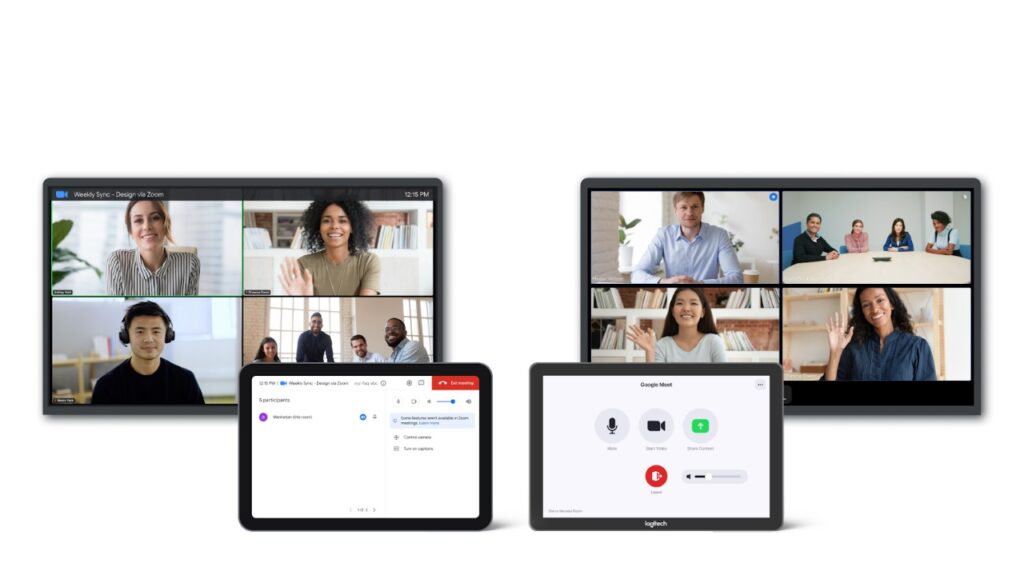
Online meetings have become an essential part of work, learning, and staying connected. Platforms like Zoom and Google Meet make it easy to communicate with colleagues, friends, or family from anywhere. In this guide, we’ll explain how to join, host, and manage meetings effectively, with step-by-step instructions and helpful tips.
Getting Started with Zoom
Zoom is one of the most popular video conferencing platforms. Here’s how to get started:
- Download and Install Zoom
o Go to Zoom’s official website or your device’s app store.
o Install the Zoom app on your computer, tablet, or smartphone. - Joining a Meeting
o Open the Zoom app and click “Join a Meeting.”
o Enter the Meeting ID and your name.
o Choose audio and video preferences, then click Join. - Hosting a Meeting
o Sign in and click “New Meeting.”
o Adjust video/audio settings and invite participants via email or meeting link.
- Tips for Smooth Zoom Meetings:
- Mute yourself when not speaking to reduce background noise.
- Use the chat feature to ask questions without interrupting
- Enable screen sharing when presenting documents or slides.
For tips on managing device performance during meetings, check out our guide on How to Free Up Space on Your Phone Without Deleting Photos.
Getting Started with Google Meet
Google Meet is integrated with Google Workspace and is convenient for both personal and professional use:
- Accessing Google Meet
o Go to meet.google.com or open the Google Meet app. - Joining a Meeting
o Click “Join a Meeting” and enter the meeting code.
o You can join using a Google account or as a guest if allowed by the host. - Starting a Meeting
o Click “New Meeting” to start instantly, schedule via Google Calendar, or create a meeting for later.
- Tips for Smooth Google Meet Meetings:
- Turn off notifications to minimize distractions.
- Use grid view to see all participants.
- Record meetings if needed (with permission).
For productivity tips while attending online meetings, visit Maximizing Productivity and Comfort with Built-In Accessibility Features.
General Tips for Online Meetings
- Test your camera, microphone, and internet connection before the meeting.
- Dress appropriately if the meeting is formal.
- Keep meeting links and codes accessible for quick access.
- Avoid multitasking to stay engaged.
Frequently Asked Questions (FAQs): Using Zoom and Google Meet
How do I join a Zoom meeting?
Click “Join a Meeting” in the Zoom app, enter the Meeting ID and your name, choose audio/video preferences, and click Join.
How do I start a meeting in Google Meet?
Go to meet.google.com, click “New Meeting,” and choose to create an instant meeting, schedule in Google Calendar, or generate a meeting link for later.
Do I need to download Zoom to join a meeting?
It’s recommended for full functionality, but you can join via a web browser without installing the app.
Can I use Google Meet without a Google account?
Yes, if the host allows guest access.
If you have any questions or require further assistance.