 Skip to content

Published on February 16, 2026 by SNSPro Global
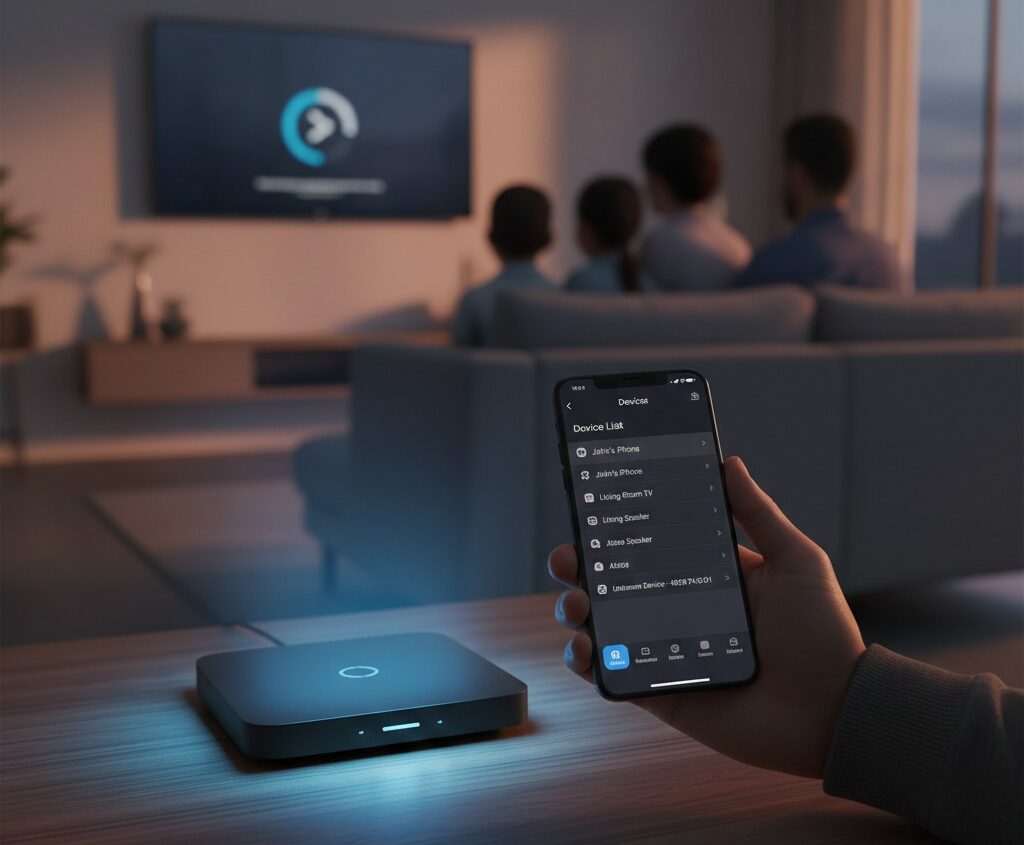
Your internet feels slower than usual.
Videos buffer. Pages load slowly.
Everything seems connected — yet nothing feels smooth.
If you’ve ever wondered whether too many devices (or unfamiliar ones) are using your Wi-Fi, you’re not alone. Home users in places like Scarsdale NY, Palo Alto CA, Plano TX, Bethesda MD, and Lake Oswego OR ask this question often.
The good news is that checking which devices are using your Wi-Fi is simpler than it sounds — and you don’t need to be technical to do it.
This guide explains, step by step, how to see connected devices, what’s normal, and when it’s worth taking action.
You can see which devices are using your Wi-Fi by:
- Signing in to your router’s settings
- Viewing the list of connected devices
- Checking names, types, and activity
- Removing or blocking unfamiliar devices
This helps improve speed, security, and reliability.
Why It’s Important to Check Connected Devices
Knowing what’s on your network helps you:
- Understand slow internet issues
- Spot devices you no longer use
- Identify unfamiliar connections
- Keep your home Wi-Fi secure
Many people discover forgotten devices that quietly stay connected for years.
How to See Devices Using Your Wi-Fi
Option 1: Check Through Your Router
Most routers have a simple dashboard that shows connected devices.
General steps:
- Open a web browser
- Enter your router’s address (often printed on the router)
- Sign in with the router username and password
- Look for “Connected Devices,” “Device List,” or “Network Map”
You’ll usually see:
- Device names
- Phones, TVs, computers, or cameras
- Connection status
Option 2: Use Your Internet Provider’s App
Many internet providers offer apps that:
- Show connected devices
- Allow you to pause or remove devices
- Display usage activity
These apps are often the easiest option for home users.
How to Recognize Devices You Own
Some devices show familiar names like:
- “John’s iPhone”
- “Living Room TV”
- “Laptop”
Others may appear as:
- “Unknown device”
- Random letters and numbers
This doesn’t always mean trouble — some devices simply use technical names.
When to Look More Closely
Pay attention if you see:
- Devices you don’t recognize
- Connections at odd hours
- Internet slowing suddenly
- Devices that won’t disconnect
These signs suggest it’s time to review your settings more carefully.
What to Do If You Find an Unknown Device
If something looks unfamiliar:
- Change your Wi-Fi password
- Reconnect only trusted devices
- Remove old or unused connections
- Restart the router
These steps usually resolve the issue quickly.
Real Stories From People We’ve Helped
Scarsdale, NY
“I found three old devices still connected. My speed improved right away.”
Palo Alto, CA
“They helped me identify what each device actually was.”
Plano, TX
“I worried someone else was using my Wi-Fi, but it was an old tablet.”
Bethesda, MD
“Once cleaned up, everything worked smoothly again.”
Lake Oswego, OR
“I felt much more in control of my home network.”
When It’s Helpful to Get Support
Consider help if:
- You can’t access router settings
- Device names don’t make sense
- Unknown devices keep appearing
- You want reassurance everything is secure
Get Calm, Trusted Wi-Fi Help
SNSPro Global helps home users:
- Review connected devices safely
- Secure home Wi-Fi networks
- Improve speed and reliability
- Explain everything step by step
Get trusted help: https://snsproglobal.com/contact-us/
FAQs — Devices Using Your Wi-Fi
Can neighbors use my Wi-Fi without permission?
Only if they know your Wi-Fi password or security is weak.
Will removing devices make Wi-Fi faster?
Often yes, especially if many devices are connected.
Do smart devices stay connected all the time?
Yes. Cameras, TVs, and speakers often stay connected continuously.
Can SNSPro Global help remotely?
Yes. SNSPro Global provides safe, step-by-step remote assistance.