 Skip to content

Published on September 1, 2025 by SNSPro Global
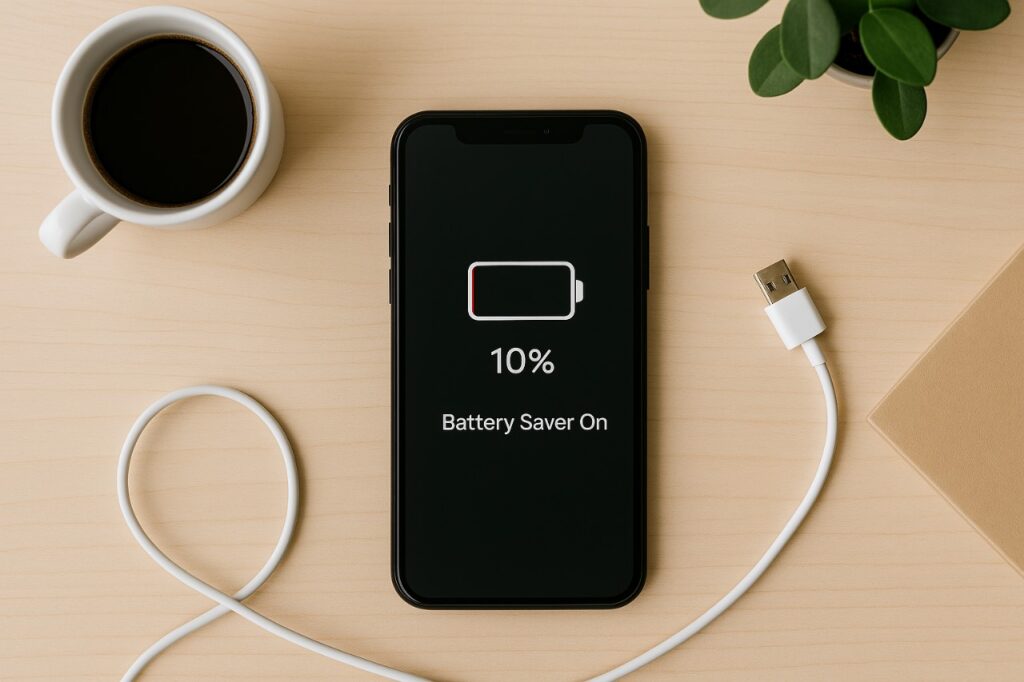
Tired of your phone dying before the day is over? We’ve all been there. The good news is you don’t need to disable every feature or turn your phone into a brick just to get more juice. With a few smart adjustments, you can extend your smartphone’s battery life while still enjoying all the features you rely on.
Here are 10 simple and effective tips to save battery life on iPhone and Android without sacrificing functionality:
Dim Your Screen
Your display is one of the biggest battery drainers. Lowering the brightness or enabling auto-brightness can conserve power significantly. You’ll barely notice the difference, but your phone will.
Use Wi-Fi Instead of Mobile Data
Mobile data requires more energy than Wi-Fi. When you’re at home, work, or somewhere with a secure connection, switch to Wi-Fi. Just make sure auto-connect is disabled to avoid joining unsafe networks. This is an easy way to save Android battery life and iPhone power alike.
If you’re also dealing with smart devices at home, managing their connectivity can make a difference. Check out our guide on Troubleshooting Smart Device Connectivity Issues to keep your tech efficient without extra drain.
Check for Power-Hungry Apps
Some apps continue running in the background, consuming battery even when unused. Go to your phone’s battery settings to see which apps drain the most power. Consider restricting background activity or uninstalling apps that are constantly active.
Apps like scanning tools or cloud-syncing services may be culprits. Learn smarter ways to handle them in The Definitive Guide to Using Your Phone as a Document Scanner (iPhone & Android, 2025).
Turn Off Unnecessary Features
You don’t need to switch to airplane mode, but toggling features smartly can help:
- Turn off Bluetooth when not using wireless devices.
- Disable GPS unless you’re actively navigating.
- Pause Background App Refresh when not essential.
Besides saving battery, this boosts security too. For complete peace of mind, see our guide on How to Remotely Lock, Wipe, or Find a Lost or Stolen Phone.
Keep Your Phone Cool
Extreme temperatures hurt your battery health. Avoid leaving your phone in direct sunlight or in a hot car. Batteries perform best at room temperature, so keeping your device cool helps maintain efficiency and longevity.
Update Your Apps & Software
App and system updates often include battery optimizations and bug fixes. Keeping everything up to date ensures your phone runs smoothly and wastes less energy.
If you want to take updates further, try customizing your device for efficiency. Our Windows 11 Personalization Guide (2025) shows how small tweaks boost both performance and usability.
Use Dark Mode
Phones with OLED or AMOLED screens save power in dark mode because black pixels are switched off instead of being lit. This makes dark mode both stylish and practical.
Dark mode is also easier on the eyes, especially when paired with accessibility options. Explore more in Maximizing Productivity and Comfort with Built-In Accessibility Features.
Set a Short Auto-Lock Timer
Don’t let your screen stay on unnecessarily. Set your phone to auto-lock after 30 seconds to 1 minute of inactivity. This quick tweak reduces wasted battery life.
Avoid Live Wallpapers
Animated wallpapers might look fun, but they constantly consume power. Choose a static background image instead to preserve energy.
Use Battery Saver Mode When Needed
Both iPhone and Android have built-in Battery Saver modes that limit background activity and visual effects. Use it when you know you’ll be away from a charger for a while—it’s the perfect safety net.
Bonus Tip: Manage Notifications Smartly
Push notifications don’t just distract—they also drain your battery by waking your screen repeatedly. Use email filters to cut down on noise. Learn how in our guide on How to Easily Create Email Filters to Organize Your Inbox and Boost Productivity.
You can also take it further by unsubscribing from spam and clutter. See How to Unsubscribe from Emails and Manage Subscriptions for a cleaner inbox and better battery life.
Frequently Asked Questions (FAQs)
Does dark mode really save battery?
Yes. On OLED and AMOLED displays, dark mode saves power because black pixels are turned off instead of being lit.
Why do some apps drain my battery so fast?
Some apps run in the background, refresh content, or use GPS. You can spot these in your battery usage settings and limit their activity.
Is it bad to charge my phone overnight?
No. Modern phones have charging management systems that prevent overcharging. Leaving your phone plugged in overnight is safe.
Final Thoughts
By making these small but effective changes, you can keep your smartphone powered longer and extend its overall battery health. From dimming your screen to using Wi-Fi and enabling dark mode, these tips help you get more out of your device without giving up convenience.
Want to improve more than just your phone habits? Explore our Self Help Guides for productivity, tech, and lifestyle strategies that make daily life easier.
If you have any questions or require further assistance.