 Skip to content

Published on August 7, 2025 by SNSPro Global
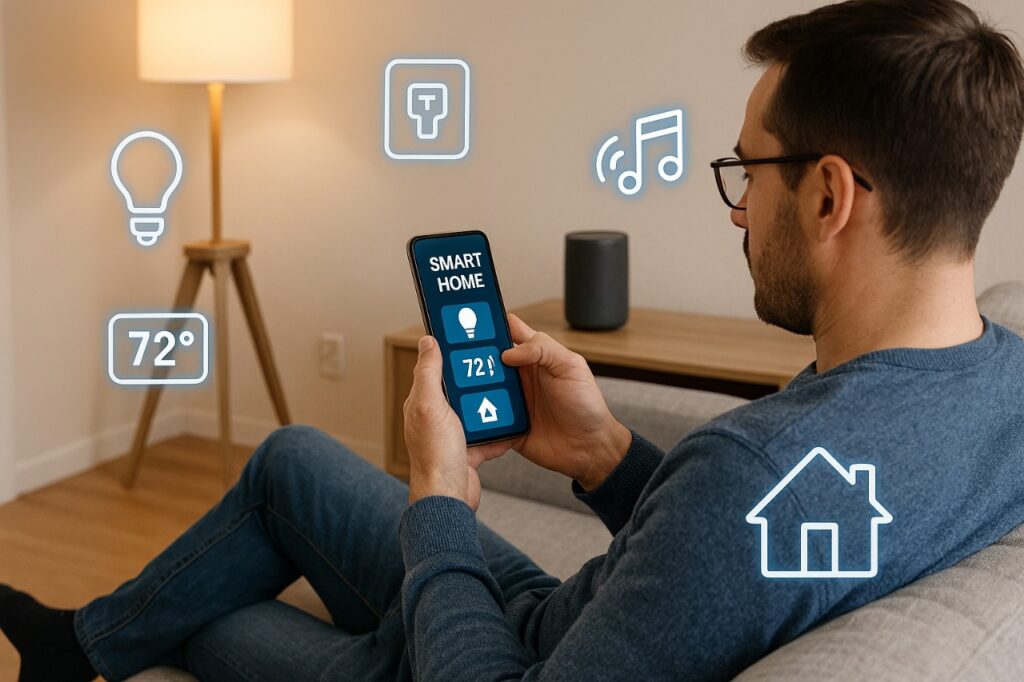
In today’s connected world, your smartphone is more than just a communication tool—it’s the ultimate remote control for your smart home. Whether you want to adjust your thermostat, turn off the lights, or check your security camera feed, it’s all possible from the palm of your hand.
Ready to transform your phone into the ultimate home controller? Let’s get started.
Why Use Your Phone as a Smart Home Remote?
Before we dive in, let’s quickly look at why this is worth doing:
- Convenience: Control everything from one place, so you don’t have to hunt for multiple remotes.
- Remote Access: Manage your home even when you’re not there.
- Automation: Set routines and scenes to make life easier.
- Voice Control: It works seamlessly with assistants like Alexa, Google Assistant, and Siri.
What You’ll Need
To get started, make sure you have:
- A smartphone (Android or iPhone)
- A Wi-Fi connection
- One or more smart home devices (e.g., smart lights, plugs, thermostats, speakers)
- The app that corresponds to your smart home platform or device
Popular platforms include:
- Google Home
- Apple Home (HomeKit)
- Amazon Alexa
- Samsung SmartThings
Step-by-Step: Turning Your Phone into a Smart Home Remote
1. Choose Your Smart Home Ecosystem
Are you team Google, Apple, Amazon, or Samsung? You’ll want to pick one platform to keep things streamlined. While most devices can work across multiple platforms, it’s easier to stick to one for smoother control.
2. Install the Right App
Go to your phone’s app store and download the app that fits your setup:
- Google Home (Android/iOS)
- Amazon Alexa (Android/iOS)
- Apple Home (built-in on iPhones)
- Samsung SmartThings (Android/iOS)
3. Connect Your Smart Devices
Follow the app’s instructions to pair your devices. This usually involves plugging in the smart device and ensuring your phone and the device are on the same Wi-Fi network. This is the most important step! After that, you’ll either scan a QR code or select the device from a list to complete the connection.
4. Create Rooms or Groups
Group your devices by room or function. For example, you can create a “Living Room” group for your smart TV, lights, and speaker. This makes it easier to control everything with one tap or voice command.
5. Set Up Shortcuts or Routines
Most smart home apps let you create routines or scenes, like:
- “Good Morning” → turns on lights, starts the coffee maker
- “Movie Night” → dims lights, turns on TV
You can run these directly from your phone or even schedule them to run automatically.
6. Use Widgets or Voice Assistants
Add home control widgets to your phone’s home screen for quick access. You can also use voice commands for hands-free control, such as:
- “Hey Siri, turn off the bedroom light.”
- “Alexa, set the thermostat to 72 degrees.”
- “Hey Google, play jazz in the kitchen.”
Bonus Tips: Keep It Secure
- Enable two-factor authentication on your smart home accounts for an extra layer of security.
- Rename your devices with recognizable names (“Living Room Lamp” instead of “Device01”).
- Update firmware regularly to keep your devices protected from new vulnerabilities.
Using your phone as a remote control for smart home devices isn’t just convenient—it’s empowering. With just a few taps or voice commands, you can manage your home from anywhere, save energy, and enjoy more peace of mind. Whether you’re just starting with one smart bulb or running a fully automated home, your smartphone is the key to unlocking its full potential.
If you have any questions or require further assistance.