 Skip to content

Published on August 5, 2025 by SNSPro Global
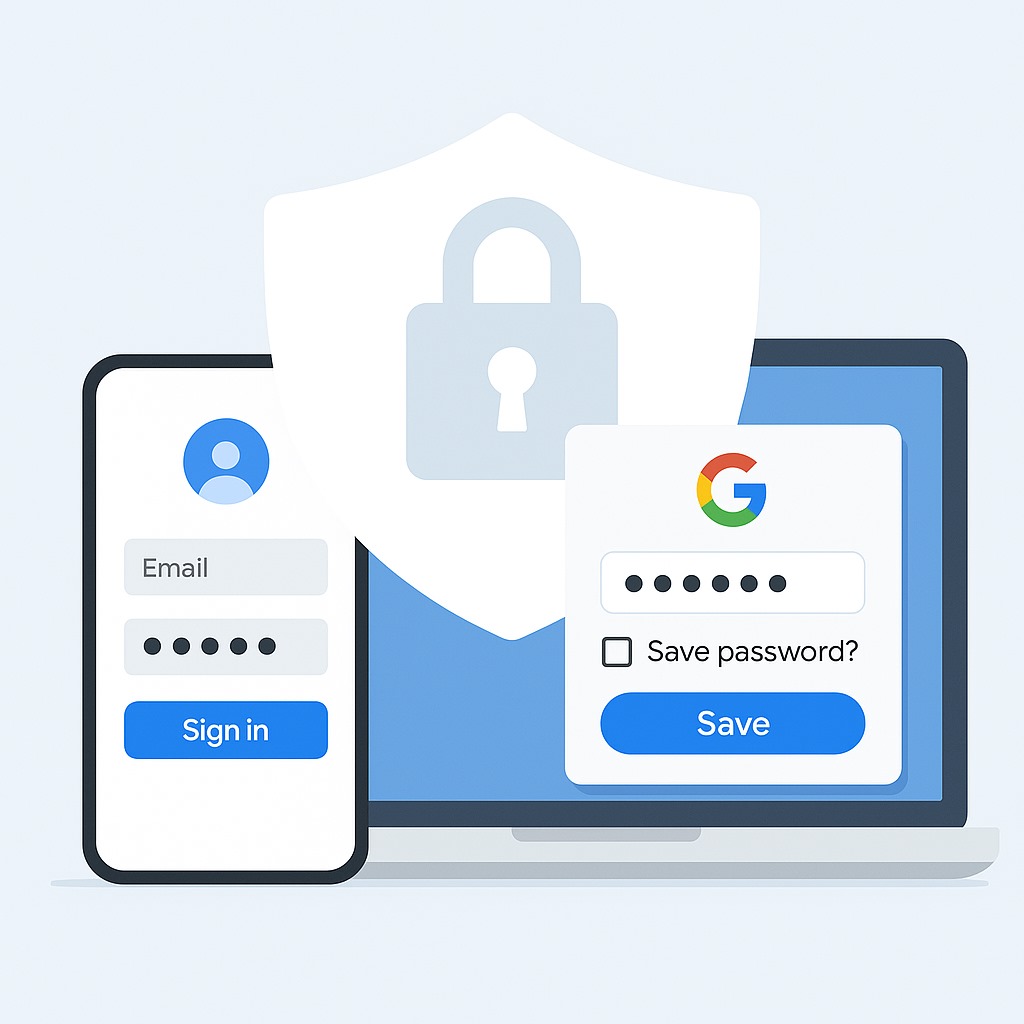
Your simple guide to safer, easier logins
Struggling to remember all your passwords?
You’re not alone. Between email, banking, streaming, shopping, and social media, it’s a lot to keep track of. That’s where Google Password Manager comes in.
If you use Chrome or an Android device, you might already be using it without even realizing it. Here’s how to make the most of it—and why it’s worth your time.
What Is Google Password Manager?
Google Password Manager is a free tool that stores and autofills your passwords across websites and apps. It’s built into:
- Google Chrome
- Android phones and tablets
- Your Google Account
It saves your login info, fills it in automatically when you need it, and keeps it all secure.
Why Use It?
- Stronger security: No more reusing weak passwords.
- Faster logins: Autofill saves you time.
- Syncs across devices: Use your passwords anywhere you’re signed into Google.
- Security alerts: Get warned if any of your passwords are part of a data breach.
How to Turn It On
On Chrome (Desktop or Mobile)
- Open Chrome.
- Click the three dots in the top right → Settings.
- Go to Autofill → Passwords.
- Turn on “Offer to save passwords” and “Auto sign-in” (optional but handy).
On Android
- Open your device’s Settings.
- Tap Google → Manage your Google Account.
- Go to the Security tab → Tap Password Manager.
- Make sure it’s enabled.
How to Save Passwords
The next time you log into a site or app, you’ll see a prompt: “Save password?”
Just tap Save. That’s it. Next time you visit, your info will autofill automatically.
You can also go to passwords.google.com to add or manage logins manually.
How to View or Edit Saved Passwords
Need to check or update a password? Here’s how:
- Visit passwords.google.com.
- Search for the website or app.
- Click the eye icon to view it (you’ll need to verify your identity).
- Click Edit or Delete if needed.
You can do the same in Chrome by going to Settings → Autofill → Passwords.
Bonus: Check for Weak or Hacked Passwords
- Google can flag passwords that:
- Are too weak
- Are reused across accounts
- Have appeared in data breaches
To run a password check:
- Go to passwords.google.com/checkup.
- Follow the prompts to update anything that looks risky.
Is Google Password Manager Safe?
Yes. It uses advanced encryption, and only you can access your saved passwords (via your phone’s passcode, fingerprint, or Face ID).
For extra protection, make sure:
- Your Google Account has two-factor authentication enabled.
- Your device is locked with a strong passcode or biometrics.
Quick Tips
- Use different passwords for every account.
- Let Google generate strong passwords for you.
- Don’t save passwords on shared or public devices.
Google Password Manager makes password security easy—without adding stress to your life. Once it’s set up, you won’t have to remember dozens of logins ever again.
If you have any questions or require further assistance.