 Skip to content

Published on August 21, 2025 by SNSPro Global
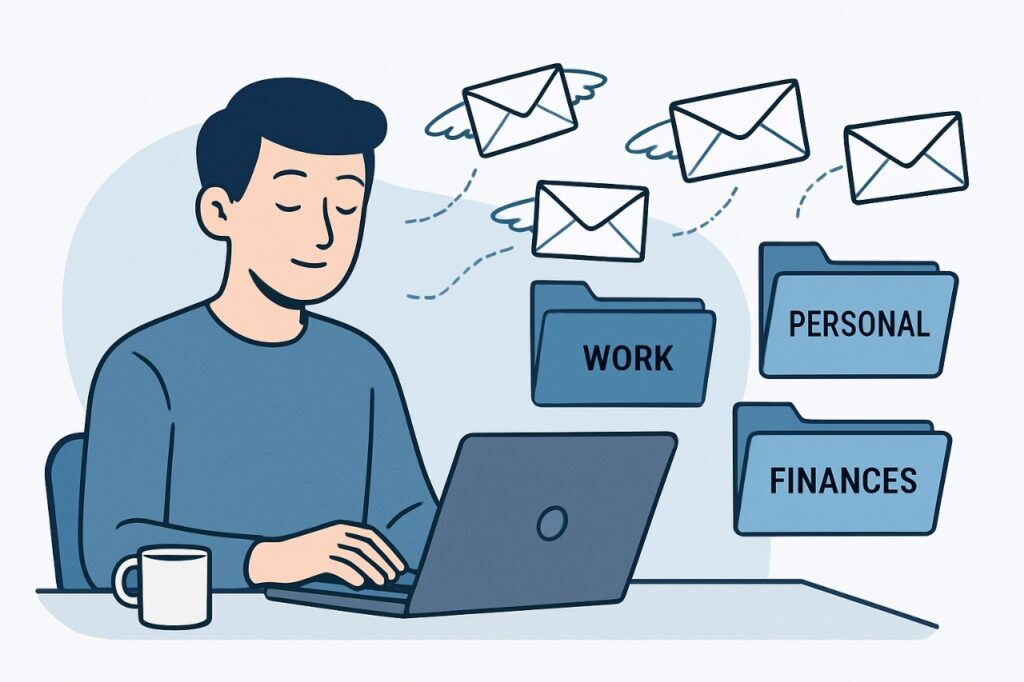
Managing emails can feel overwhelming when your inbox is full of newsletters, promotions, work updates, and personal messages. That’s where email filters come in. Learning how to create filters in email is one of the most effective ways to organize your inbox, block spam, and improve productivity.
In this guide, we’ll cover what email filters are, step-by-step instructions on creating filters in Gmail, Outlook, Yahoo, AOL, and iCloud, and why using filters is useful for anyone looking to take control of their inbox.
What Are Email Filters?
- An email filter is a set of rules you create to automatically sort, label, archive, forward, or delete incoming messages based on criteria such as:
- Sender’s email address
- Subject line keywords
- Attachments
- Specific phrases within the email
- Instead of manually moving messages, filters help you automate email organization and save valuable time.
Why Creating Email Filters Is Useful
- If you’ve ever spent too much time looking for important messages, email filters can make your inbox smarter. Here’s why they matter:
- Stay organized – Automatically label and group emails by category.
- Reduce stress – Clear out clutter so only important messages reach your primary inbox.
- Save time – No more manually deleting or moving repetitive emails.
- Block spam – Send unwanted emails directly to the trash.
- Boost productivity – Focus on critical emails first.
How to Create Filters in Gmail
- Open Gmail and click the gear icon → See all settings.
- Go to the Filters and Blocked Addresses tab.
- Select Create a new filter.
- Enter filter criteria (e.g., sender, subject keywords).
- Choose an action: archive, label, mark as important, or delete.
- Click Create filter.
Example: Move all newsletters containing “unsubscribe” into a “Newsletters” folder.
How to Create Filters in Outlook
- Open Outlook → Home tab → Rules → Manage Rules & Alerts.
- Click New Rule.
- Choose conditions (sender, subject, keywords).
- Select an action (move to folder, flag, delete).
- Save your rule.
Example: Automatically move all emails with “Invoice” in the subject to a “Finance” folder.
How to Create Filters in Yahoo Mail
- Click the Settings icon → More Settings.
- Select Filters → Add new filters.
- Enter filter name and criteria.
- Choose a folder where emails should go.
- Save and apply.
Example: Send all promotional emails with “Sale” in the subject to a “Deals” folder.
How to Create Filters in AOL Mail
- Log in to AOL Mail → Click Options → Mail Settings.
- Go to the Filters and Alerts section.
- Click Create filter.
- Enter conditions (sender, subject, keywords).
- Choose what happens (move to folder, delete, mark as read).
- Save your filter.
Example: Send all job-related emails with “Resume” in the subject to a “Career” folder.
How to Create Filters in iCloud Mail
- Log in to iCloud Mail at iCloud.com.
- Click the gear icon (bottom left) → Rules.
- Select Add a Rule.
- Choose criteria (from, to, subject).
- Choose an action: move to folder, forward, delete.
- Save your rule.
Example: Forward all travel booking confirmations to a “Travel” folder.
Best Practices for Using Email Filters
- Use specific keywords to avoid filtering the wrong emails.
- Review filters regularly to adjust as needs change.
- Combine filters with folders/labels for maximum organization.
- Don’t over-filter — keep a balance so you don’t miss important emails.
FAQs About Email Filters
What is the main purpose of email filters?
The main purpose is to automatically sort and manage incoming emails, helping you stay organized and avoid inbox overload.
Can email filters block spam?
Yes, email filters can block unwanted messages by sending them directly to spam or trash.
Do filters work on mobile apps?
Yes, filters created on web platforms (like Gmail, Outlook, AOL, or iCloud) sync across desktop and mobile apps.
Can I set up multiple filters at once?
Absolutely. You can create multiple filters for different categories, such as work, family, newsletters, and promotions.
Conclusion: Take Control of Your Inbox
Learning how to create filters in email is a simple but powerful way to declutter your inbox and boost productivity. Whether you use Gmail, Outlook, Yahoo, AOL, or iCloud Mail, filters help you automatically organize emails, block spam, and ensure you never miss important messages again.
If you’re tired of inbox chaos, start setting up email filters today — your future self will thank you.
If you have any questions or require further assistance.