 Skip to content

Published on September 2, 2025 by SNSPro Global
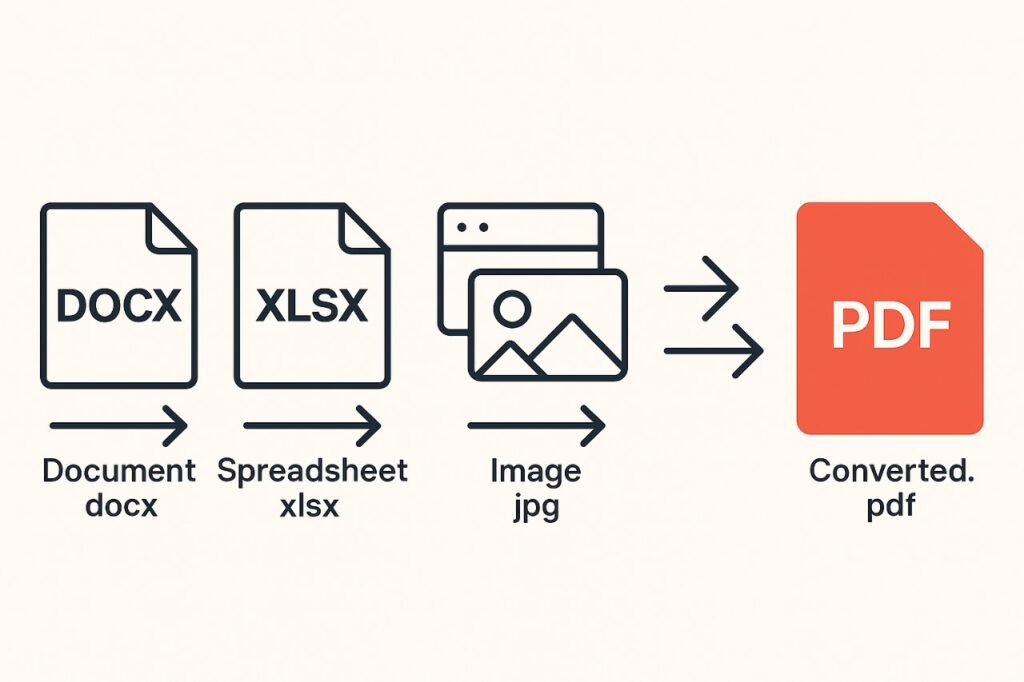
Converting files to PDF ensures your documents are professional, secure, and easy to share. Whether you are working on Windows, Mac, or mobile devices, this guide shows you how to convert Word, Excel, PowerPoint, images, and more into PDF effortlessly.
We’ll also cover online PDF tools, scanning apps, and answer your most common questions about PDF conversion.
Convert to PDF on Windows
- Using Microsoft Print to PDF
- Open your document (Word, Excel, PowerPoint, or image).
- Press Ctrl + P or go to File > Print.
- Choose Microsoft Print to PDF as your printer.
- Click Print and select a save location.
This method works with almost any app that supports printing.
- Save As PDF in Microsoft Office
- Open your file in Word, Excel, or PowerPoint.
- Go to File > Save As.
- Select PDF from the file type dropdown.
- Click Save.
Learn more about Microsoft Office tips on our self-help section.
Convert Files to PDF on Mac
- Using macOS Print to PDF
- Open your document or image.
- Press Command (⌘) + P to open the print dialog.
- Click the PDF button in the bottom-left corner.
- Choose Save as PDF and select the destination folder.
Works on Safari, Pages, Preview, and most Mac apps.
Convert Files to PDF on Mobile Devices
- Android
- Open your file in any app (Docs, Gallery, or browser).
- Tap Share > Print.
- Select Save as PDF as your printer.
- Save the file.
- iPhone/iPad
- Open your file or webpage.
- Tap the Share icon.
- Scroll down and select Print.
- Pinch out the preview → Tap Share → Save to Files as PDF.
Online PDF Conversion Tools
If you prefer online tools, these free platforms are excellent for PDF conversion:
- Adobe Acrobat Online – Convert Word, Excel, images, and more.
- Smallpdf – Easy-to-use PDF converter and editor.
- Free PDF Convert – Quick conversion of documents to PDF.
- Canva PDF Converter – Convert files to and from PDF with ease.
Online tools are perfect for quick conversions without installing software.
Scan Documents Directly to PDF
Scan physical documents and save them as PDFs using these apps:
- Adobe Scan
- Microsoft Lens
- CamScanner
Available on Android and iOS. Ideal for digitizing receipts, contracts, and notes.
Frequently Asked Questions (FAQs)
How can I convert a scanned image to PDF?
Use scanning apps like Adobe Scan or Microsoft Lens, which automatically save your scans as PDFs.
What is the best free PDF converter for Windows?
Microsoft Print to PDF and online tools like Smallpdf and Free PDF Convert are excellent free options.
Can I convert a webpage to PDF on my iPhone?
Yes, open the webpage, tap Share > Print, pinch out the preview, and save to Files as PDF.
How do I merge multiple files into a single PDF?
Use online platforms like Smallpdf or Adobe Acrobat Online to combine multiple documents into one PDF.
If you have any questions or require further assistance.