 Skip to content

Published on January 12, 2026 by SNSPro Global
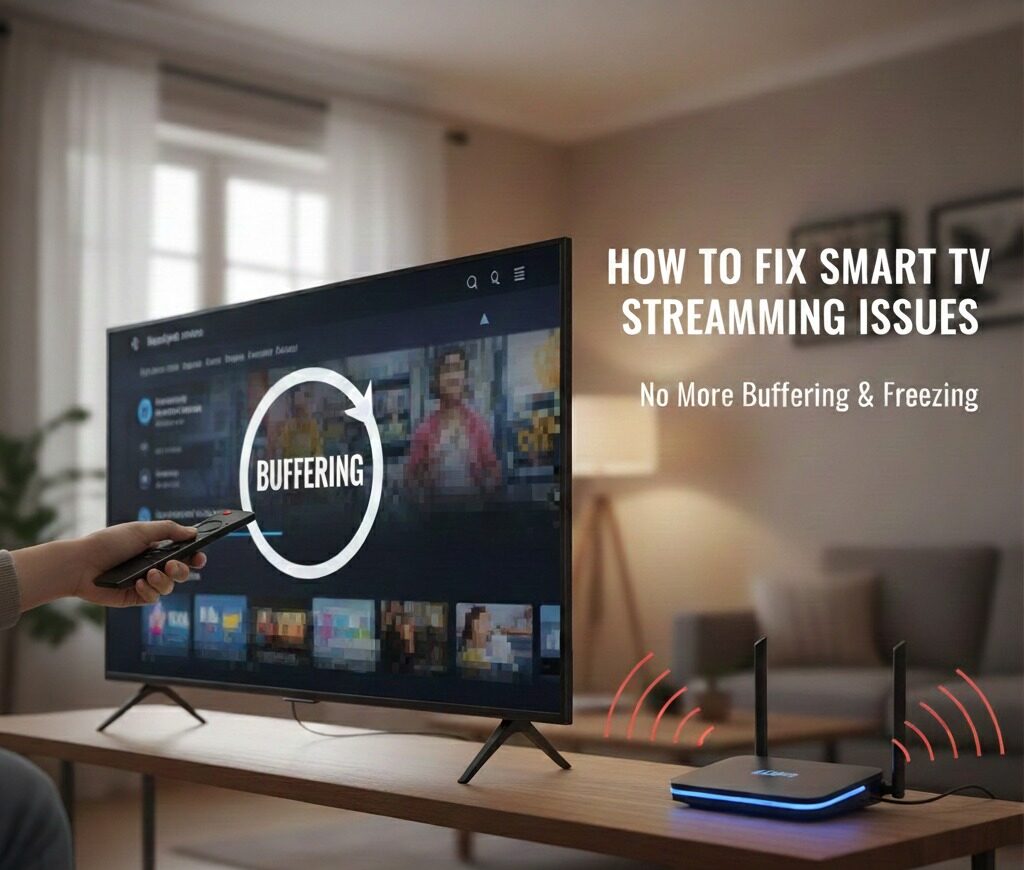
If your Smart TV keeps buffering, freezing, or failing to load streaming apps, you’re not alone. Many homeowners experience streaming issues even with fast internet—especially in the evening when networks are busiest.
The good news is that most Smart TV streaming problems are caused by Wi-Fi coverage gaps, network congestion, or outdated settings, not a broken TV. With a few simple steps, you can restore smooth, reliable streaming without replacing your equipment.
How to Stop Smart TV Streaming Problems
To fix Smart TV buffering and freezing quickly:
- Restart your TV and internet router.
- Check your speed: Aim for 25 Mbps or higher for HD/4K.
- Improve Wi-Fi coverage near the TV.
- Update your TV software and apps.
In most suburban homes, the issue is Wi-Fi quality, not just raw internet speed.
Why Smart TVs Buffer and Freeze
Smart TVs are often less forgiving than laptops or phones when Wi-Fi is weak or unstable. Common causes include:
- Distance: The router is placed too far from the TV.
- Obstructions: Thick walls, floors, or furniture weakening the signal.
- Congestion: Too many devices using bandwidth simultaneously.
- Firmware: Outdated TV system software or apps.
- Configuration: Issues with Router or DNS settings.
If your TV says “Connected but no internet,” check out our deep dive:
Connected but No Internet: Causes & Fixes
Step-by-Step: How to Fix Your Streaming Issues
1. Restart Your TV and Internet Equipment
This clears temporary network errors and refreshes your connection.
- Turn off your Smart TV.
- Unplug your modem and router from the power outlet.
- Wait 60 seconds.
- Plug them back in in this order: Modem → Router → TV.
2. Check Your Internet Speed
Streaming requires consistent, sustained speed.
- HD Streaming: 10–15 Mbps
- 4K Streaming: 25+ Mbps
Use our simple guide to verify your actual speeds:
Internet Speed Test: A Simple Guide
3. Improve Wi-Fi Coverage
Smart TVs need a strong, steady signal. If your router is tucked away, try these tips:
- Move the router closer to the TV if possible.
- Elevate the router off the floor and away from metal objects.
- Mesh Systems: Consider a Wi-Fi mesh system for larger suburban homes.
Simple Tips to Improve Home Wi-Fi Coverage
4. Update Software and Apps
Outdated software is a leading cause of app crashes and freezing.
- Go to your TV’s Settings and check for System Updates.
- Open your App Store to ensure Netflix, YouTube, and Prime Video are updated.
5. Reduce Network Congestion
If everyone is online at once, your TV might be fighting for “airtime.”
- Pause large downloads on computers or consoles.
- Enable Quality of Service (QoS) in your router settings to prioritize streaming traffic.
Success Stories: Results for Homeowners Like You
Real Stories From People We’ve Helped
(Suburban Homes Like Yours)
Scottsdale, AZ
“Our Smart TV buffered every night even though speed tests looked fine. SNSPro Global found weak Wi-Fi in the living room and fixed it remotely. Streaming is now flawless.”
White Plains, NY
“The TV said it was connected, but nothing loaded. SNSPro Global identified a DNS issue and fixed it within minutes.”
Walnut Creek, CA
“Phones worked fine, but the TV froze constantly. SNSPro Global improved Wi-Fi coverage without replacing equipment. Huge improvement.”
Irvine, CA
“Prime-time streaming was unreliable despite fast internet. SNSPro Global optimized our network so the TV always streams smoothly.”
Naples, FL
“Clear explanations, no jargon, no pressure. Everything was fixed remotely and works perfectly now.”
Cary, NC
“Streaming issues were frustrating. SNSPro Global tested our setup, improved placement, and confirmed everything was secure.”
When to Call the Professionals
If buffering continues after trying the steps above, the issue might be deeper, involving:
- Complex router configurations or ISP signal quality.
- Outdated networking hardware.
- Advanced DNS or security settings.
SNSPro Global helps homeowners improve Smart TV streaming and Wi-Fi reliability securely and remotely—no jargon, just results.
Contact SNSPro Global for Expert Help
Frequently Asked Questions
Why does my Smart TV keep buffering even with fast internet?
It’s usually due to Wi-Fi “noise” or congestion. Your speed might be fast, but the stability of the connection to the TV is likely dropping.
Is Ethernet better than Wi-Fi for Smart TVs?
Absolutely. If you can run a cable, a wired Ethernet connection is always more stable than Wi-Fi.
How often should I restart my router?
A quick reboot every 1–2 weeks helps maintain peak performance and clears out “digital cobwebs.”