 Skip to content

Published on December 9, 2025 by SNSPro Global
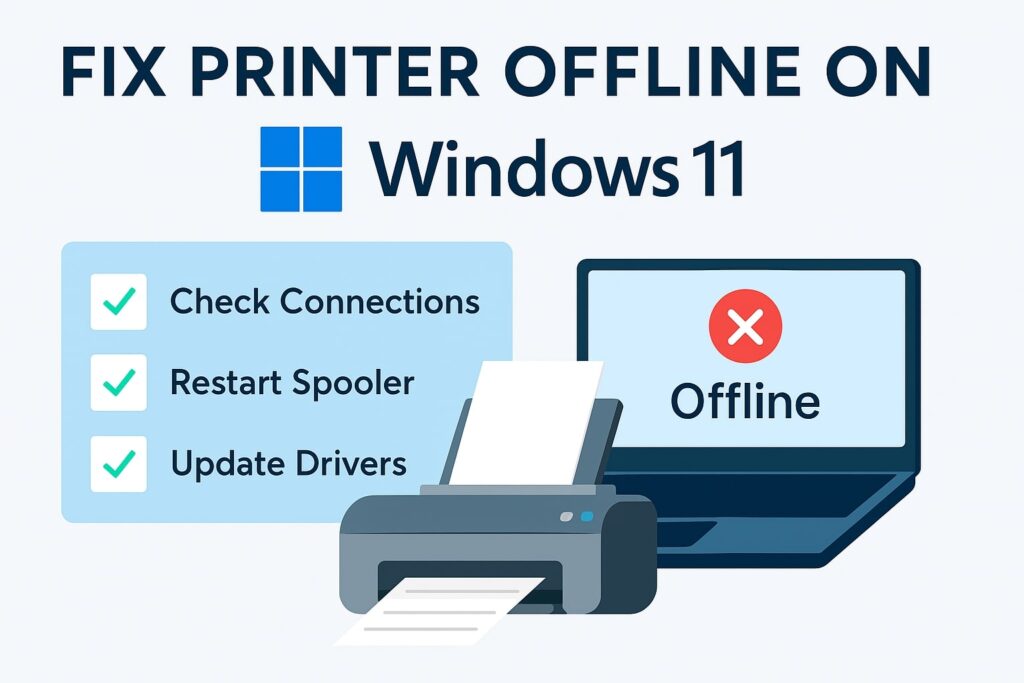
Is your printer showing “Offline” on Windows 11? You’re not alone — this is one of the most common and frustrating PC issues. When a printer goes offline, your computer can’t communicate with it, usually because of a simple connection glitch or outdated driver.
This step-by-step guide will help you quickly bring your printer back online and get printing again.
How to Fix “Printer Offline” on Windows 11
The fastest way to fix a printer that shows Offline on Windows 11 is to reset it and check one key setting:
- Power Cycle: Turn off your printer and PC. Unplug the printer’s power cable for 30 seconds, then plug it back in and restart both devices.
- Check Status: Go to Settings → Bluetooth & devices → Printers & scanners.
- Untick “Use Printer Offline”: Select your printer and make sure this option is unchecked.
If it’s still offline, follow the detailed troubleshooting steps below.
Step-by-Step Guide to Fix Printer Offline on Windows 11
The following seven steps go from the easiest to the most advanced fixes. Follow them in order for the best results.
1. Verify Physical and Network Connections (The Basics)
Most offline errors come from connection issues. Start with these checks:
- Power: Make sure the printer is plugged in and powered on.
- USB Cable: If it’s a wired printer, confirm the USB cable is securely connected at both ends.
- Wi-Fi or Ethernet:
- For wireless printers, check that the Wi-Fi light is solid (not blinking) and that it’s connected to the same network as your Windows 11 PC.
- For wired printers, ensure the Ethernet cable is firmly connected to both the printer and the router.
Tip: Want more flexibility? Learn how to connect your smartphone to your wireless printer.
2. Clear the Print Queue and Check Printer Status
A stuck or corrupted print job can cause your printer to go offline.
- Press Windows Key + R, type control printers, and hit Enter.
- Right-click your printer → See what’s printing.
- In the queue window, select Printer → Cancel All Documents.
- Then, ensure Pause Printing and Use Printer Offline are not checked.
This simple reset clears most offline errors.
3. Restart the Windows Print Spooler Service
The Print Spooler manages all print jobs. If it freezes, your printer appears offline.
- Press Windows Key + R, type services.msc, and hit Enter.
- Find Print Spooler, right-click it, and select Restart.
- If Restart is unavailable, open Properties, set Startup type to Automatic, click Apply, and then Start.
Restarting the spooler refreshes communication between Windows and your printer.
4. Update or Reinstall Your Printer Driver
Outdated or corrupted drivers often cause offline errors.
- Press Windows Key + X → Device Manager.
- Expand Printers or Print queues.
- Right-click your printer → Update driver → Search automatically for updated driver software.
If that doesn’t work:
- Right-click again → Uninstall device → Restart your PC.
- Windows 11 will reinstall a compatible driver automatically.
- For best performance, download the latest driver from your printer manufacturer’s website.
Outdated drivers can also cause system slowdowns. Here’s how to boost Windows 11 performance.
5. Remove and Re-Add the Printer
If configuration files are corrupted, removing and re-adding the printer resets its connection.
- Go to Settings → Bluetooth & devices → Printers & scanners.
- Select your offline printer → Remove.
- Click Add a printer or scanner and follow the prompts.
Windows will reinstall the printer with fresh connection settings.
6. Verify Correct Port Settings
Your printer must communicate through the right port.
- Open Control Panel → View devices and printers.
- Right-click your printer → Printer properties.
- Go to the Ports tab:
- For USB printers: Ensure a USB port is selected.
- For Network printers: Confirm the correct Standard TCP/IP Port (matching your printer’s IP address) is checked.
If network services seem sluggish, you might benefit from improving system performance — see our Windows 11 performance guide.
7. Contact Professional Support if the Printer Is Still Offline
If none of these steps fix the problem, the issue may involve:
- Deep driver conflicts
- Corrupted Windows system files
- Hardware failure
Don’t spend hours troubleshooting. Reach out to SNSPro Global for expert, remote assistance.
Contact SNSPro Global Today for fast, professional printer support.
Frequently Asked Questions (FAQ)
Q: Why does my printer keep showing “Offline” after I fix it?
This often points to an unstable Wi-Fi connection or a faulty USB cable. If you’re on Wi-Fi, try connecting directly via USB or Ethernet. Also, assign your printer a static IP address on your router to prevent it from changing.
Can my firewall block the printer connection?
Yes. Sometimes, Windows Defender or third-party firewalls block communication with network printers. Temporarily disable the firewall or add your printer software as an exception to test if that resolves the issue.
What is the Print Spooler and why does restarting it help?
The Print Spooler is a background Windows service that queues print jobs. When it gets stuck or corrupted, it stops communicating with your printer. Restarting the spooler clears these errors and restores the connection.
Key Takeaways
- Start with simple connection checks — most offline errors are minor.
- Always restart the Print Spooler before deeper fixes.
- Update or reinstall printer drivers to prevent recurring issues.
- If problems persist, SNSPro Global can resolve them quickly and remotely.
Contact SNSPro Global for professional help today.