 Skip to content

Published on September 1, 2025 by SNSPro Global
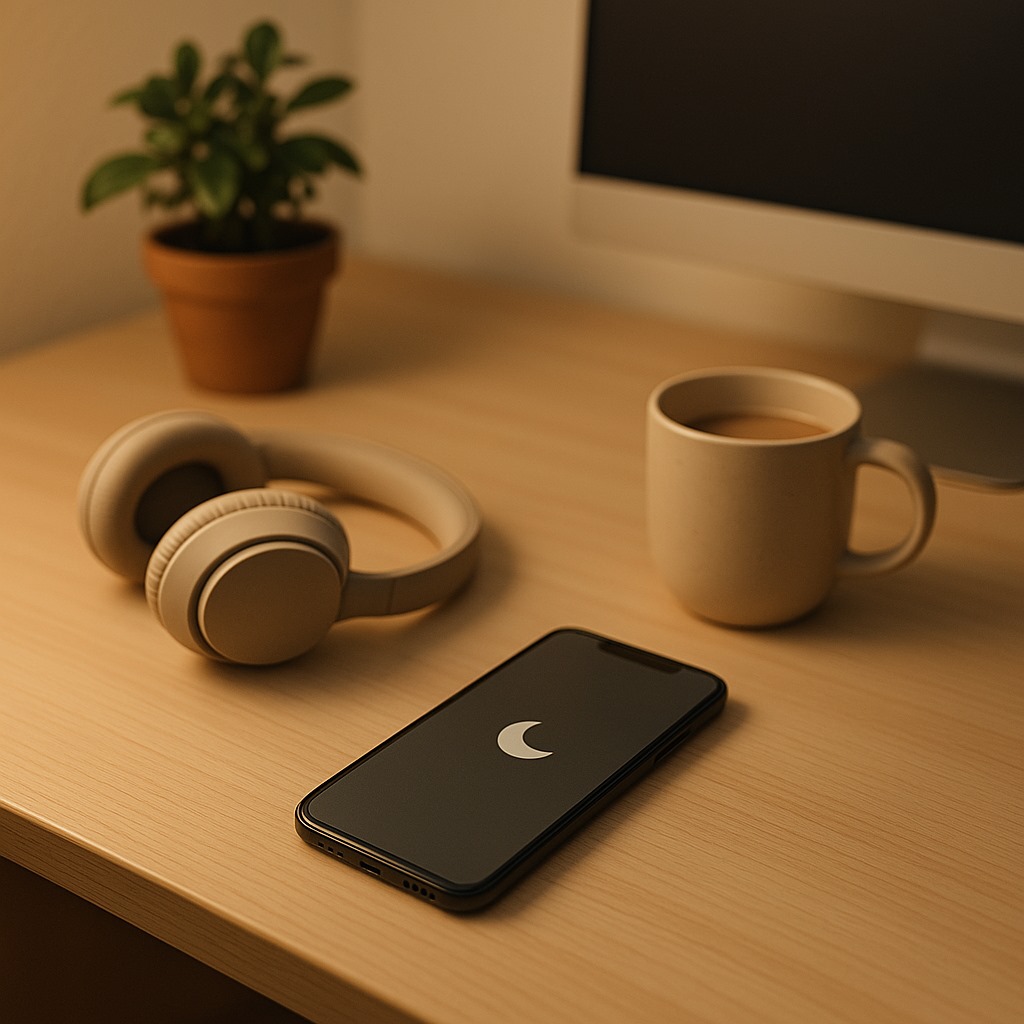
Constant notifications can interrupt work, rest, and focus. Activating Do Not Disturb (DND) mode allows you to control when and how you’re interrupted, ensuring uninterrupted time for work, personal tasks, or rest.
Whether you’re using an iPhone, Android device, Windows PC, or Mac, this guide will walk you through enabling and customizing DND mode for your needs.
For additional productivity tips while minimizing interruptions, check out our guide on Maximizing Productivity and Comfort with Built-In Accessibility Features.
On iPhone (iOS)
Enable Do Not Disturb
- Open Control Center:
- Swipe down from the top-right corner (iPhone X and later)
- Swipe up from the bottom (iPhone 8 and earlier)
- Tap the crescent moon icon to activate DND instantly.
- Or go to Settings > Focus > Do Not Disturb to access more options.
Customize DND:
- Schedule Quiet Time: Set DND to activate automatically during work hours or bedtime.
- Allow Important Calls: Add contacts to your “Allowed Notifications” list. Emergency calls can bypass DND.
- App Control: Choose which apps can send notifications while DND is active.
- Capture your DND settings for reference by learning How to Take a Screenshot on Any Device.
On Android
Enable Do Not Disturb
- Swipe down to open Quick Settings.
- Tap the Do Not Disturb icon.
- Or go to Settings > Notifications > Do Not Disturb.
Customize DND:
- Schedules: Automatically activate DND at chosen times.
- Exceptions: Allow certain contacts or apps to bypass DND.
- Behavior Settings: Control whether DND blocks sounds, badges, or popups.
- For smoother device performance while using DND, see our guide on Boosting Windows 11 Performance.
On Windows 10/11 (Focus Assist)
Enable Focus Assist:
- Click the Action Center (bottom-right).
- Toggle Focus Assist: Off / Priority Only / Alarms Only.
Customize Focus Assist:
- Go to Settings > System > Focus Assist.
- Set rules for specific times, during presentations, or while gaming.
- Choose priority notifications (calls, reminders, apps).
- If you want a more focused workflow, check out How to Use Keyboard Shortcuts to Save Time on Windows or macOS.
On Mac (macOS Ventura and later)
Enable Do Not Disturb
- Click the Control Center icon (top-right).
- Select Focus > Do Not Disturb and choose a time period.
Customize DND:
- Go to System Settings > Focus > Do Not Disturb
- Add automations: turn on DND when opening specific apps, connecting to Wi-Fi, or arriving at a location.
- Allow calls/messages from specific contacts or apps.
Final Tips for Mastering DND
- Use Widgets or Shortcuts: Quickly toggle DND on iOS and Android.
- Sync Across Devices: On Apple devices, enabling DND on one can sync across all.
- Capture Settings: Take a screenshot of your DND setup for future reference.
- Organize your digital workflow by exploring Bookmarks: Your Guide to a Tidy Web, reducing distractions during DND periods.
You deserve uninterrupted time—whether it’s for deep work, self-care, or simply doing nothing. Do Not Disturb is your digital boundary. Use it like a pro, and reclaim your focus one silence at a time.
Frequently Asked Questions (FAQs)
How do I enable DND on iPhone?
Open Control Center and tap the crescent moon icon, or go to Settings > Focus > Do Not Disturb.
Can I schedule DND on Android?
Yes, go to Settings > Notifications > Do Not Disturb > Schedules.
Does DND block alarms on Windows?
No, alarms will still sound even when Focus Assist is set to “Alarms Only.”
How can I allow calls from specific contacts on Mac?
Go to System Settings > Focus > Do Not Disturb, and add contacts or apps to the Allowed Notifications list.
If you have any questions or require further assistance.