 Skip to content

Published on September 12, 2025 by SNSPro Global
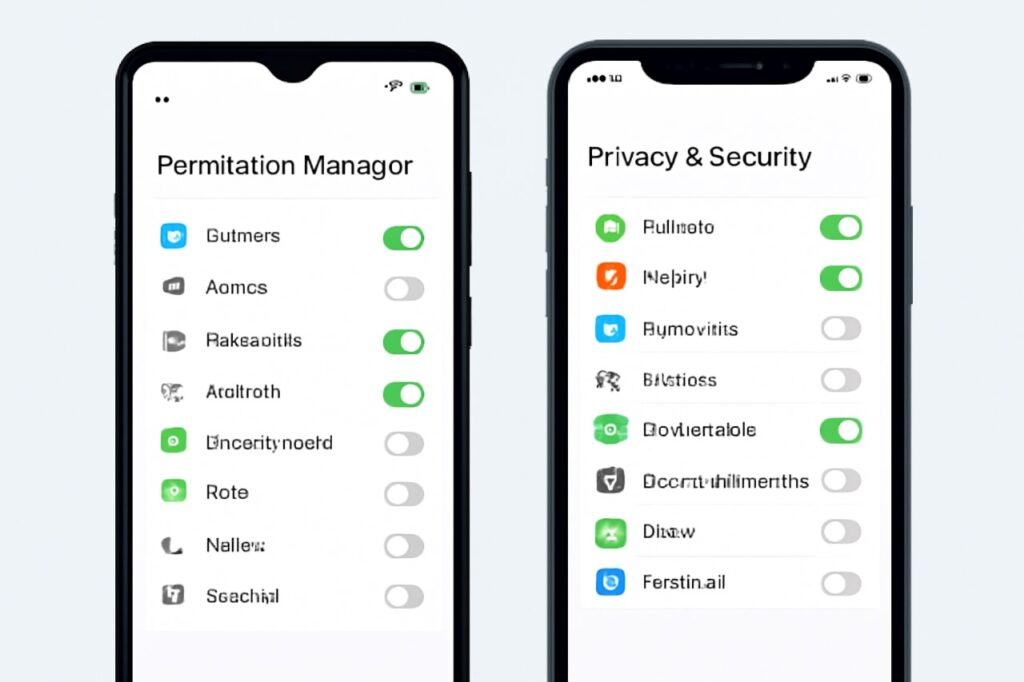
Keeping your personal information safe is more important than ever. By customizing app privacy settings on your Android or iPhone, you can control what data apps access, reduce unwanted tracking, and protect your privacy effectively.
Why You Should Customize App Privacy Settings
Managing app permissions safeguards sensitive data like location, contacts, camera, and microphone. It also prevents apps from running unnecessary background tasks, improving device performance and security.
How to Manage App Permissions on Android
- Open Settings: Tap on the ‘Settings’ app.
- Go to Privacy: Navigate to ‘Privacy’ > ‘Permission Manager.’
- Select App Permissions: Review the permissions for each app.
- Adjust Permissions: Enable or disable access based on your needs.
For further guidance on managing apps, see How to Change Default Apps on Windows, Mac, Android, and iPhone.
How to Customize App Privacy on iPhone
- Open Settings: Tap on the ‘Settings’ app.
- Go to Privacy & Security: Navigate to ‘Privacy & Security.’
- Choose Permissions: Select categories such as Location, Camera, Microphone, and Contacts.
- Adjust Access: Toggle permissions on or off for individual apps to control access.
For more tips on protecting your data, check The Complete Guide to Exporting and Importing Browser Bookmarks.
Essential Tips for Enhanced Mobile Privacy
- Regularly Review Permissions: Check app permissions periodically to ensure no unnecessary access is granted.
- Limit Location Sharing: Only allow apps that truly need your location.
- Use Strong Passwords: Strengthen your security with Google Password Manager.
- Enable Two-Factor Authentication: Add an extra layer of security by following this guide.
- Be Mindful of Voice Assistants: Limit data access by managing settings through Voice Assistants Guide.
- Update Apps Regularly: Keep apps up-to-date to benefit from security patches and new privacy features.
Frequently Asked Questions (FAQs)
How can I customize app permissions on my Android phone?
Go to Settings > Privacy > Permission Manager to adjust each app’s permissions individually.
How do I manage app privacy settings on an iPhone?
Open Settings > Privacy & Security, then select categories like Camera, Location, and Microphone to adjust access.
Why is managing app privacy settings important?
It protects sensitive data, reduces unwanted tracking, and ensures your apps operate securely.
Can I limit app tracking without affecting functionality?
Yes, carefully review each app’s permissions and disable non-essential access while maintaining core functions.
Conclusion
Taking control of your app privacy settings allows you to protect personal data and enjoy a safer mobile experience. Regularly reviewing and adjusting permissions ensures that your Android or iPhone only shares information you choose to share.
If you have any questions or require further assistance.