 Skip to content

Published on July 28, 2025 by SNSPro Global
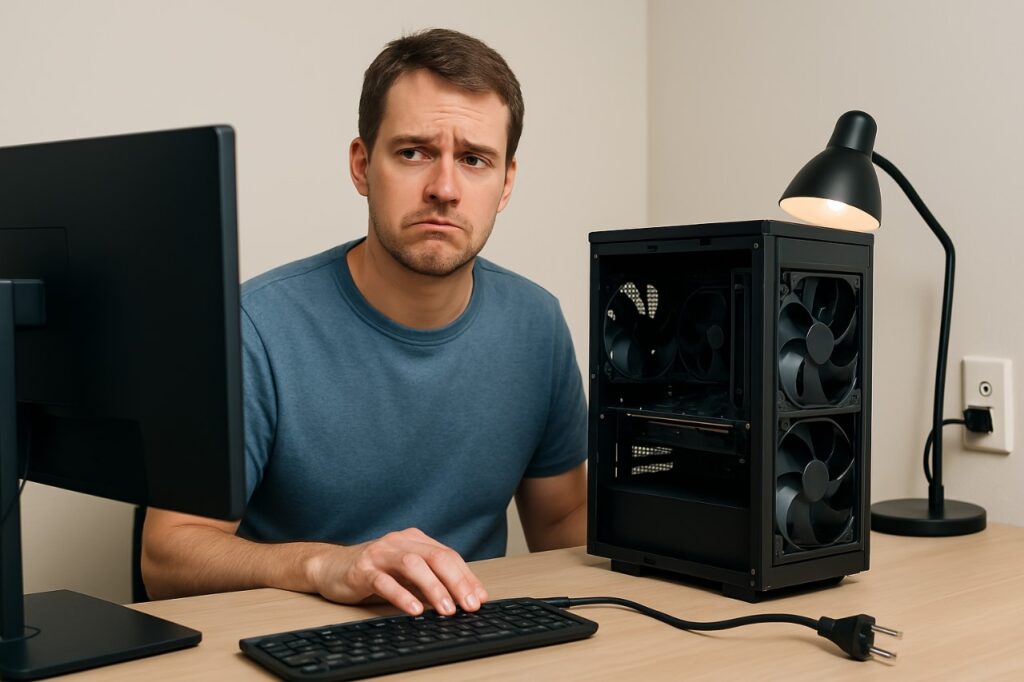
If your computer suddenly won’t turn on, don’t panic. Many power issues are simple and can be resolved with a few basic checks.
Here’s a step-by-step guide for laypersons to troubleshoot a computer that won’t power on — no technical expertise required.
- Check the Power Source
- Wall Socket: Ensure the socket is working by plugging in another device (like a phone charger or lamp).
- Power Strip or Surge Protector: If you’re using one, verify that it’s switched on and functioning properly. Bypass the power surge & connect directly to Power Outlet.
- Try a Different Power Outlet: Sometimes, the outlet itself might be faulty. Try plugging your computer into a different wall socket.
- Inspect Power Cables and Connections
- Desktop Users:
- Confirm the power cable is securely connected to both the power outlet and the CPU (power supply unit).
- Look for any visible damage to the cable.
- Laptop Users:
- Check if the charger is plugged in properly and the charging light (if any) is on.
- Try another compatible charger, if available.
- Desktop Users:
- Look for Signs of Life
- Listen for:
- Fan spinning
- Beeps or startup sounds
- Look for:
- Power lights
- Keyboard backlight or screen flicker
If none of these signs are present, it might be a power delivery issue.
- Listen for:
- Disconnect External Devices
Remove all peripherals like:- USB Drives
- Printers
- External Monitors
- Keyboards/Mice (Except one If needed)
A faulty peripheral can occasionally cause boot issues.
- Reset Power
- For Laptops:
- Unplug the charger.
- Remove the battery if it’s detachable.
- Press and hold the power button for 10–15 seconds.
- Reconnect the battery and charger, then try powering on.
- For Desktop:
- Unplug the power cable.
- Hold the power button for 10 seconds to discharge any residual power.
- Reconnect and power on.
- For Laptops:
- Check for Physical Damage or Unusual Smells
Any burnt smell, clicking noise, or physical damage might indicate a hardware failure. In such cases, do not attempt further self-repair — seek professional help.
Still Not Working? At this point, it’s best to contact professional support.
If you have any questions or require further assistance.