 Skip to content

Published on August 5, 2025 by SNSPro Global
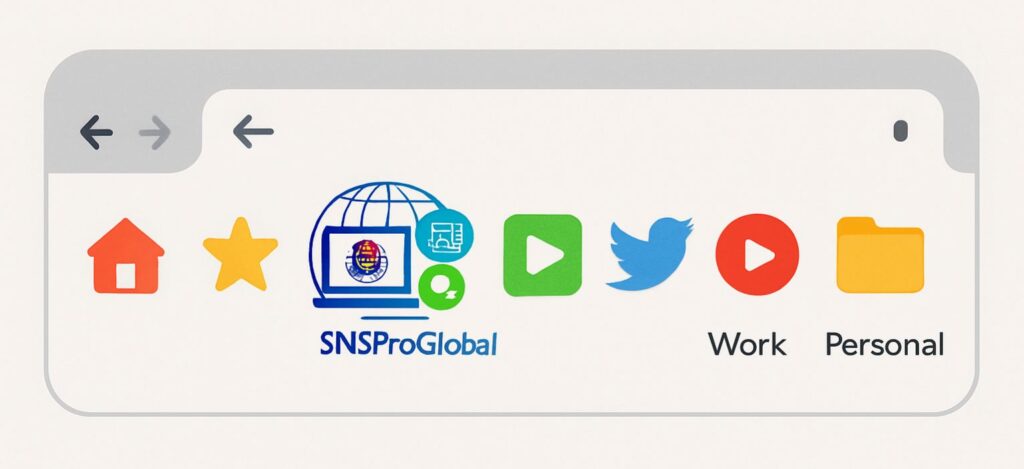
Bookmarks are your smartest web tool! Say goodbye to endless searching and cluttered tabs.
These handy digital shortcuts instantly whisk you away to your favorite online spots, making your web Browse smoother, more productive, and uniquely yours.
Importance of Bookmarks:
- Time-Saving Hero: No more retyping URLs or sifting through your Browsing history. Bookmarks are instant shortcuts to your favorite online destinations.
- Productivity Power-Up: Whether it’s work resources, learning materials, or frequently used tools, bookmarks keep everything you need for your tasks just a click away, helping you stay focused and efficient.
- Information Keeper: Found a fascinating article you want to read later? A product you’re considering buying? Bookmark it! It’s like having a digital “to-read” or “to-buy” list that never gets lost.
- Personalized Web Experience: Over time, your bookmarks become a reflection of your interests and needs, making your web Browse experience uniquely tailored to you.
How to Create Bookmarks in Your Favorite Browsers?
Google Chrome:
- Chrome makes bookmarking incredibly easy, reflecting its focus on speed and simplicity.
- Open the Page: Navigate to the webpage you want to bookmark.
- Click the Star: Look for the small star icon (*) on the right side of the address bar. Click on it.
- Name and Folder: A small pop-up will appear.
- Name: You can keep the suggested name or type in something more descriptive for yourself.
- Folder: Chrome usually defaults to “Bookmarks bar” or “Other bookmarks.” You can choose an existing folder or click “Choose another folder” to create a new one for better organization.
- Click “Done”: And just like that, your page is bookmarked!
Pro Tip: To quickly access your bookmarks, enable the “Bookmarks bar” by going to Chrome’s settings (three dots in the top right) > “Bookmarks” > “Show bookmarks bar.”
Microsoft Edge:
Edge, being based on Chromium, has a bookmarking process very similar to Chrome, making it familiar for many users.
- Visit the Page: Open the webpage you want to save.
- Click the Star: Locate the star icon (*) on the right side of the address bar. Click on it.
- Add to Favorites: A pop-up will appear titled “Add to favorites.”
- Name: Enter a descriptive name for your bookmark.
- Folder: Select a folder (e.g., “Favorites bar” or “Other favorites”) or create a new one by clicking “Add a new folder.”
- Click “Done”: Your page is now a favorite (Edge’s term for bookmark).
Pro Tip: You can quickly access your favorites by clicking the “Favorites” icon (the star with three horizontal lines next to it) in the toolbar.
Mozilla Firefox:
Firefox offers a similar, user-friendly approach to bookmarking, with excellent organization options.
- Go to the Page: Open the webpage you wish to bookmark.
- Click the Star: Find the star icon (*) on the right side of the address bar. Click it.
- Edit Bookmark: A small “Edit Bookmark” dialog will appear.
- Name: Give your bookmark a clear, memorable name.
- Folder: You can choose from “Bookmarks Menu,” “Bookmarks Toolbar,” or other existing folders. Click the dropdown to see more options, including creating a “New Folder…”
- Tags: (Optional) Add tags to your bookmarks for even more specific organization and searching later.
- Click “Done”: Your bookmark is now saved.
Pro Tip: Firefox’s Library (accessible by clicking the three horizontal lines in the top right, then “Bookmarks” > “Manage Bookmarks”) is a powerful tool for organizing, searching, and backing up your bookmarks.
Apple Safari:
Safari, native to Apple devices, integrates bookmarking seamlessly into its interface. On macOS (Desktop):
- Open the Desired Page: Navigate to the webpage you want to bookmark.
- Click the Share Icon or Menu:
- Share Icon: Click the Share icon (a square with an arrow pointing upwards) in the Safari toolbar.
- Menu Bar: Alternatively, go to “Bookmarks” in the top menu bar.
- Select “Add Bookmark”: From the Share menu or Bookmarks menu, choose “Add Bookmark.”
- Name and Location: A dialog box will appear.
- Name: Give your bookmark a clear name.
- Add this page to: Choose where you want to save it (e.g., “Favorites,” “Bookmarks Menu,” or a specific folder).
- Click “Add”: Your bookmark is saved.
Get Bookmarking!
Now that you know how to create bookmarks in all the major browsers, there’s no excuse for losing track of those valuable online finds. Start bookmarking today and transform your Browsing experience from chaotic to perfectly curated. Happy surfing!
If you have any questions or require further assistance.