 Skip to content

Published on February 6, 2026 by SNSPro Global
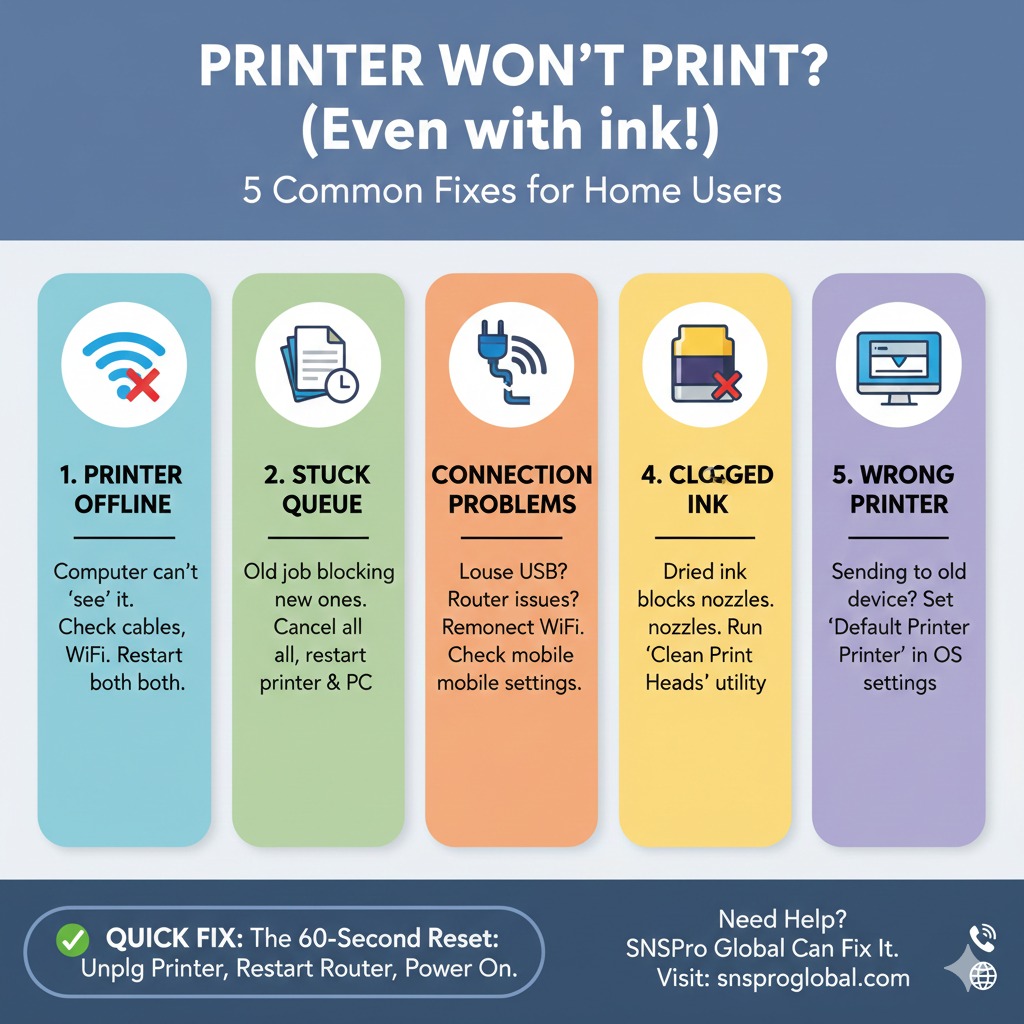
You press Print.
Nothing happens.
If your printer has ink but won’t print, you’re dealing with one of the most common home printer problems on Windows and macOS.
Home users in places like Scottsdale, White Plains, Walnut Creek, Irvine, Naples, and Cary run into this issue every day. The good news is that in most cases, the printer isn’t broken. There’s usually a simple reason behind it—and a simple fix.
This guide explains why a printer won’t print even when it has ink, and what you can calmly check before replacing anything.
Why Is My Printer Not Printing Even Though It Has Ink?
If your printer has ink but won’t print, the issue is usually software or connection-related, not the ink itself.
The most common causes are:
- Printer stuck Offline or in Error mode
- A frozen or corrupted print job
- The wrong printer selected (PDF, AirPrint, or old device)
- Dried or clogged ink nozzles
Fixing one of these usually gets printing back within minutes.
Why Printers Stop Printing (Even When Ink Is Full)
Think of your printer like a kitchen.
You may have all the ingredients (ink), but if:
- the order ticket never reaches the chef (software issue), or
- the kitchen door is locked (connection problem)
…no meal ever gets served.
Most printer issues are communication breakdowns, not hardware failures.
5 Most Common Reasons Your Printer Won’t Print (And What to Do)
1. Printer Is Showing “Offline”
This is the number one reason printing stops.
It means your computer lost its pathway to the printer—even though the printer is turned on.
Follow this step-by-step guide to bring it back online:
Fixing Printer Offline in Windows 11
2. A Print Job Is Stuck in the Queue
One corrupted document can block everything behind it—like a cork in a bottle.
What to do:
- Open your printer’s queue
- Cancel all pending jobs
- Restart both your printer and computer
This clears the traffic jam.
3. Connection Problems (USB or Wi-Fi)
Wi-Fi drops happen more often than people realize. Sometimes the printer reconnects to the wrong network—or even a neighbor’s router.
Quick checks:
- Make sure the printer and computer are on the same Wi-Fi
- Restart your router if needed
Mobile printing tip:
If you print from a phone, both devices should be on the same 2.4GHz network.
Helpful guide:
Connecting Your Smartphone to Your Wireless Printer
4. Dried or Clogged Ink Nozzles
If the printer hasn’t been used in weeks, ink can dry at the nozzle—even if cartridges show full.
Fix:
- Open your printer menu or software
- Go to Maintenance / Tools
- Run Clean Print Heads
You may need to run this once or twice.
5. The Wrong Printer Is Selected
After updates or device changes, your computer may send print jobs to:
- A PDF printer
- AirPrint instead of the full driver
- An old printer you no longer use
Set the correct default printer:
Windows 11
Settings → Bluetooth & devices → Printers & scanners
Turn off “Let Windows manage my default printer”
Select your printer → Set as Default
Windows 10
Start → Settings → Devices → Printers & scanners
Select printer → Manage → Set as default
macOS
Apple Menu () → System Settings → Printers & Scanners
Use the Default Printer dropdown and choose your model
The Simple Reset That Often Fixes Everything
If none of the above works, try this power cycle. It resets the connection handshake.
- Turn off the printer and unplug it for 60 seconds
- Restart your Wi-Fi router
- Plug the printer back in and turn it on
This alone resolves many “printer won’t print” issues.
Real Stories From People We’ve Helped
These are real situations our remote support team resolves every day:
White Plains, NY
I thought I needed new ink, but a Windows update had paused my printer.
Irvine, CA
I was accidentally sending photos to my office printer 20 miles away.
Cary, NC
My Mac kept choosing AirPrint instead of the correct driver. One remote session fixed it.
Get Calm, Trusted Printer Help
If your printer still won’t print—or error messages won’t clear—you don’t have to keep guessing.
SNSPro Global provides secure, remote printer support for home users across the U.S.
No pressure. No upselling. Just clear help.
Contact SNSPro Global for Calm, Expert Printer Help
Frequently Asked Questions
Why does my printer say it has ink but won’t print?
This is usually caused by the printer being offline, a stuck print queue, or the wrong printer being selected—not empty ink.
How do I fix a printer that won’t print on Windows 11?
Go to Settings → Printers & scanners, confirm the printer is online, and set it as the default printer.
Can dried ink stop a printer from printing?
Yes. If the printer hasn’t been used recently, run a Clean Print Heads cycle from the maintenance menu.
Why does my printer keep going offline?
Wi-Fi drops, power-saving settings, or Windows updates can cause printers to lose connection repeatedly.