 Skip to content

Published on October 29, 2025 by SNSPro Global
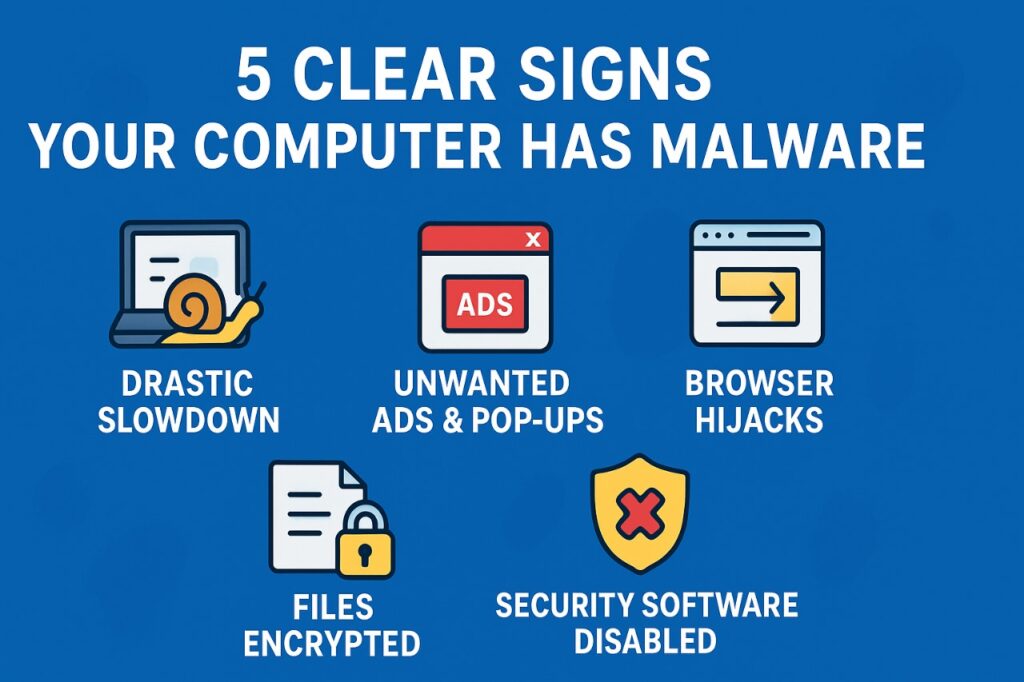
Your computer suddenly slows down, pop-ups start appearing, or your browser changes without permission—these are often warning signs of malware, short for malicious software.
Malware can quietly steal personal data, damage files, and compromise security. Spotting these symptoms early helps you stop an infection before it escalates.
In this guide, you’ll learn the five clearest signs your computer may have malware, how to check and remove it safely, and when to seek professional help.
How to Tell Right Away if You Have Malware
If your computer is acting strangely, here are the top three signs it’s likely infected:
- Sudden Slowdown: Programs take longer to open, and performance drops drastically.
- Unwanted Ads & Pop-ups: Fake security alerts or random pop-ups appear, even with no browser open.
- Browser Redirects: Your homepage or search engine changes unexpectedly.
If these occur, avoid using your computer for sensitive activities (like online banking) until it’s checked and cleaned.
What Is Malware and Why It’s Dangerous
Malware is software created to harm your computer or steal information. Common types include viruses, spyware, ransomware, and adware.
These threats can:
- Steal your login credentials and banking details
- Corrupt or encrypt files
- Spy on your activity
- Slow down or crash your system
Protecting your data starts with knowing what to look for—and acting quickly when something feels off.
Your Computer Runs Much Slower Than Usual
A sluggish system is one of the most common indicators of a malware infection. Malicious programs run silently in the background, using up your computer’s CPU and memory.
What to look for:
- Applications take longer to launch
- Fans run loudly even when idle
- Frequent system freezes or crashes
Why it happens:
Malware could be encrypting data, mining cryptocurrency, or sending information to hackers.
For Mac users: If your Mac or iPhone is underperforming, our MacKeeper Guide to Optimize Mac, iPhone, and iPad offers step-by-step cleanup and optimization tips.
You See Pop-ups or Ads You Didn’t Ask For
Persistent pop-ups—even when your browser is closed—are a strong sign of adware or spyware.
What to look for:
- Fake antivirus alerts
- Browser toolbars you never installed
- Ads for unrelated or suspicious products
Why it happens:
Adware inserts unwanted ads into your browsing experience. Clicking them can make the infection worse, so close the pop-ups immediately and run a scan.
Your Browser Redirects to Strange Websites
Malware often hijacks your browser to redirect traffic or collect data.
What to look for:
- Homepage changes to a site you don’t recognize
- Redirects to spam or fake search pages
- New extensions or plugins appear without your consent
Why it happens:
A browser hijacker has taken control of your web settings, trying to expose you to malicious or phishing sites. Reset your browser and remove suspicious add-ons before scanning your system.
Your Files Are Locked, Missing, or Encrypted
If your files disappear or you see ransom messages demanding payment, your system is likely infected with ransomware.
What to look for:
- Files renamed or ending in “.locked” or “.encrypted”
- You can’t open common files (like photos or documents)
- On-screen ransom note demanding cryptocurrency
Why it happens:
Ransomware encrypts your data and holds it hostage. Never pay the ransom—there’s no guarantee you’ll regain access.
Once the malware is removed, you may still recover your lost files using built-in recovery tools. See our guide: How to Recover Deleted Files Using Built-In Tools (Recycle Bin & Time Machine).
Your Antivirus or Security Settings Are Disabled
Sophisticated malware may disable your security software to avoid being detected.
What to look for:
- Antivirus won’t open or update
- Windows Defender or firewall turns off automatically
- “Security settings changed” warnings appear
Why it happens:
The malware is protecting itself. Manual removal can be risky and incomplete, so it’s best to get professional assistance.
How to Check and Remove Malware Safely
If you’ve noticed any of these signs, follow these steps to check and remove malware securely:
- Disconnect from the Internet: Turn off Wi-Fi or unplug your Ethernet cable to prevent data theft or spread.
- Run a Full System Scan: Use reputable antivirus software. If yours is blocked, download a trusted scanner on another computer and run it from a USB drive.
- Contact an Expert: Rootkits, ransomware, and advanced threats often need expert removal.
Contact SNS Pro Global for safe, remote malware removal and system recovery support.
Don’t ignore the warning signs—malware can cause serious data loss or privacy breaches.
If your computer is infected, get professional help right away. Contact SNS Pro Global to have your system safely cleaned and restored by experts.
Frequently Asked Questions
Can malware infect my phone or tablet?
Yes. Mobile malware is increasingly common. Look for unexplained data usage, overheating, or apps you didn’t install.
Will rebooting my computer remove a virus?
No. Most malware restarts automatically when your system boots up. A reboot may pause the problem but won’t eliminate it.
What’s the difference between a virus and malware?
“Malware” is a broad term for harmful software. A “virus” is a specific type that spreads by replicating itself between files.