 Skip to content

Published on September 2, 2025 by SNSPro Global
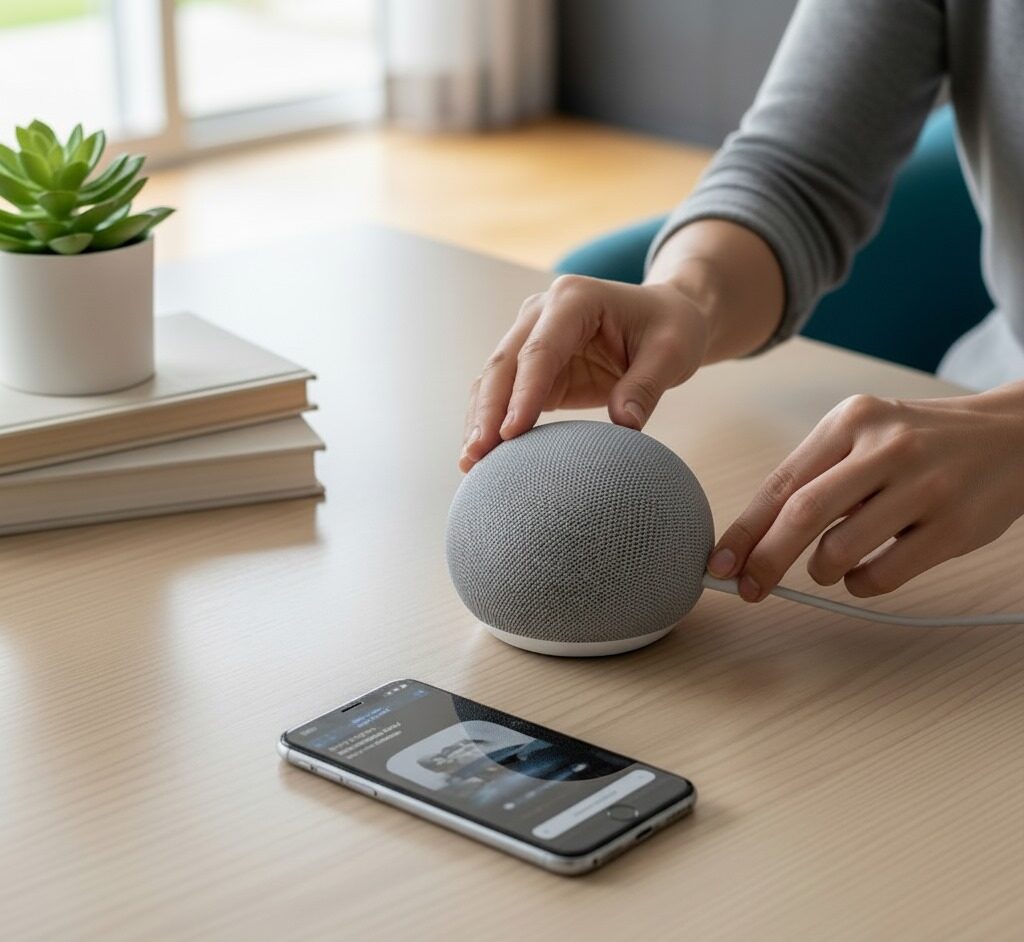
Setting up a smart speaker like Amazon Alexa or Google Nest is easier than you think. With a few simple steps, you can control your home devices, play music, and get instant information using voice commands. In this guide, we’ll show you how to connect your smart speaker and make the most of its features.
Step 1: Unbox and Power Up Your Smart Speaker
Before you start, place your smart speaker on a flat surface and plug it in. Make sure it’s near your Wi-Fi router for the best connection.
Tip: Check if your device requires a power adapter (some Google Nest models come with a built-in plug).
Step 2: Install the Required App
Download the Alexa app for Amazon devices or Google Home app for Google Nest. Follow the app’s on-screen instructions to connect your speaker to Wi-Fi.
Pro Tip: Keep your smartphone nearby during setup for smoother pairing.
Step 3: Configure Voice Commands
Once connected, customize your voice settings. You can choose your language, preferred wake word (“Alexa” or “Hey Google”), and link other smart home devices.
Test commands like:
- “Play my favorite playlist.”
- “Turn off the living room lights.”
Step 4: Explore Smart Features
Take advantage of your smart speaker’s capabilities:
- Set reminders and alarms
- Check the weather
- Control smart home devices
- Stream music and podcasts
Step 5: Troubleshooting Common Issues
If your smart speaker isn’t responding:
- Restart the device
- Check Wi-Fi connection
- Ensure the app is updated
Here are the Troubleshooting Tips for Smart Devices.
Frequently Asked Questions (FAQs)
How do I reset my Alexa or Google Nest speaker?
Press and hold the reset button for 10 seconds until the LED light flashes. Then reconnect via the app.
Can I use both Alexa and Google Nest in the same home?
Yes, but it’s recommended to use separate voice commands to avoid conflicts.
How do I connect my smart speaker to other smart devices?
Open the Alexa or Google Home app, navigate to “Add Device,” and follow the on-screen instructions.
If you have any questions or require further assistance.