 Skip to content

Published on August 21, 2025 by SNSPro Global
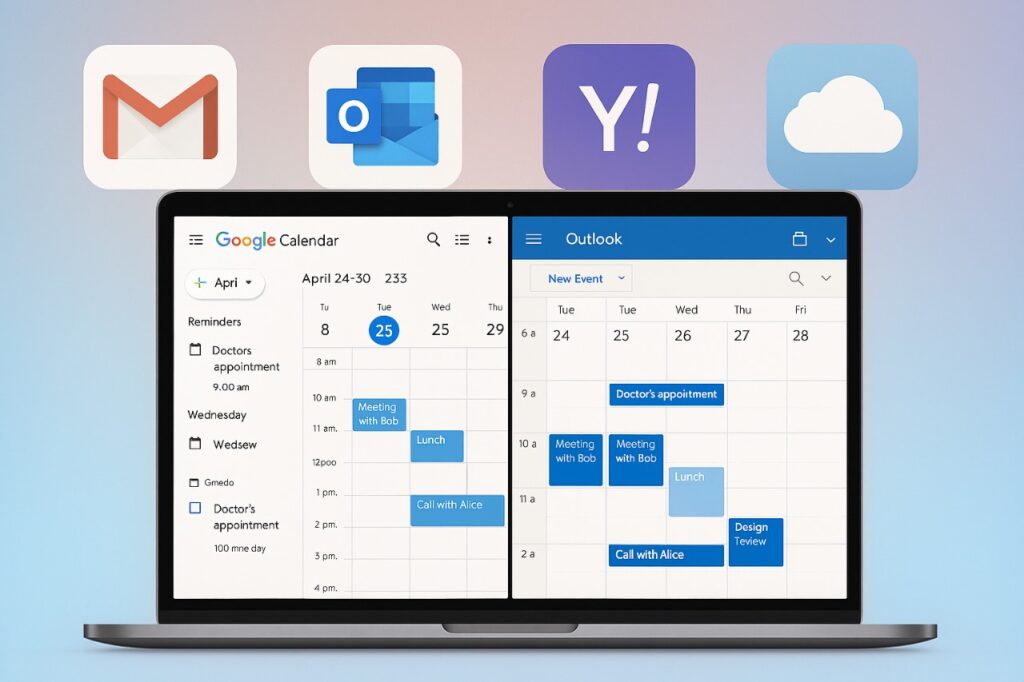
Managing your schedule is much easier when you know how to use Calendar in Gmail, Outlook, and other email IDs. Whether you want to set reminders, plan meetings, or sync your calendar across devices, these built-in tools can help you stay productive.
In this guide, we’ll explain how to use Google Calendar with Gmail, Outlook Calendar with Microsoft accounts, and calendars in Yahoo, iCloud, and other email providers.
Why Use an Email Calendar?
- Using an email calendar ensures you never miss a meeting, deadline, or event. The benefits include:
- Automatic sync across devices (phone, desktop, tablet)
- Smart reminders and notifications
- Seamless sharing for teamwork
- Integration with video conferencing apps (Google Meet, Microsoft Teams, Zoom)
- Time management and productivity tracking
How to Use Google Calendar in Gmail
If you’re a Gmail user, you already have access to Google Calendar. Here’s how to get started:
- Access Google Calendar
- Log in to Gmail.
- Click the Google Apps grid (top-right corner).
- Select Calendar — it will open in a new tab.
- Create Events & Meetings
- Click “+ Create” on the left panel.
- Add event details (title, time, location, participants).
- Choose Google Meet to instantly generate a meeting link.
- Set Reminders & Tasks
- Use Reminders for important deadlines.
- Add Tasks that sync with Gmail and Google Tasks app.
Pro Tip: Learn how to sync Google Calendar with Outlook if you use both platforms.
How to Use Outlook Calendar with Microsoft Email IDs
For Outlook users, the Microsoft Outlook Calendar is a powerful scheduling tool, especially for business users.
- Open Outlook Calendar
- Go to Outlook.com and log in.
- Click the Calendar icon on the sidebar.
- Schedule a Meeting or Event
- Click New Event.
- Fill in event details: date, time, participants, reminders.
- Add a Teams meeting link directly for video calls.
- Sync Outlook Calendar Across Devices
- Install the Outlook mobile app (iOS/Android).
- Sign in to keep your calendar updated everywhere.
Pro Tip: How to share Outlook Calendar with coworkers — click Share, enter their email, and adjust permissions.
Using Calendars with Other Email Providers
Not using Gmail or Outlook? No problem — most providers include a calendar feature.
- Yahoo Mail Calendar
- Sign in to Yahoo Mail.
- Click the Calendar icon in the sidebar.
- Create events, set reminders, and sync with mobile.
- iCloud Calendar (Apple ID)
- Accessible at iCloud.com or via the iPhone/iPad Calendar app.
- Best for Apple users who want seamless cross-device sync.
- Zoho & ProtonMail Calendars
- Both services offer privacy-first calendar tools.
- Useful for professionals who value security.
- Related search: Best way to organize schedule using email calendars.
- Best Practices for Email Calendar Management
- Color-code events (work, personal, travel, etc.).
- Set recurring reminders for weekly or monthly tasks.
- Enable push notifications on desktop & mobile.
- Share your calendar with family or team members.
- Integrate with task apps like Todoist, Asana, or Trello.
FAQs: How to Use Calendar in Gmail, Outlook & Other Email IDs
Can I sync Gmail and Outlook calendars together?
Yes. You can sync Google Calendar with Outlook Calendar using third-party tools or import/export options.
How do I get calendar reminders on my phone?
Download the Google Calendar app or Outlook app, log in, and enable notifications.
Is it possible to share my calendar with others?
Yes. Both Gmail and Outlook allow calendar sharing via email permissions.
Which is better: Google Calendar or Outlook Calendar?
- Google Calendar: Best for personal use, simplicity, and mobile sync.
- Outlook Calendar: Best for businesses using Microsoft 365 and Teams.
Can I use multiple calendars in one account?
Yes. Both platforms allow multiple calendars (personal, work, holidays) under the same email ID.
Conclusion
Knowing how to use Calendar in Gmail, Outlook, and other email IDs helps you stay organized, save time, and manage your tasks effortlessly.
- Gmail Calendar is perfect for individuals and teams who use Google Workspace.
- Outlook Calendar is ideal for professionals and businesses using Microsoft 365.
- Other email calendars like Yahoo, iCloud, and Zoho also provide reliable scheduling options.
By using these tools daily, you’ll transform your inbox into a smart productivity hub.
If you have any questions or require further assistance.