 Skip to content

Published on September 24, 2025 by SNSPro Global
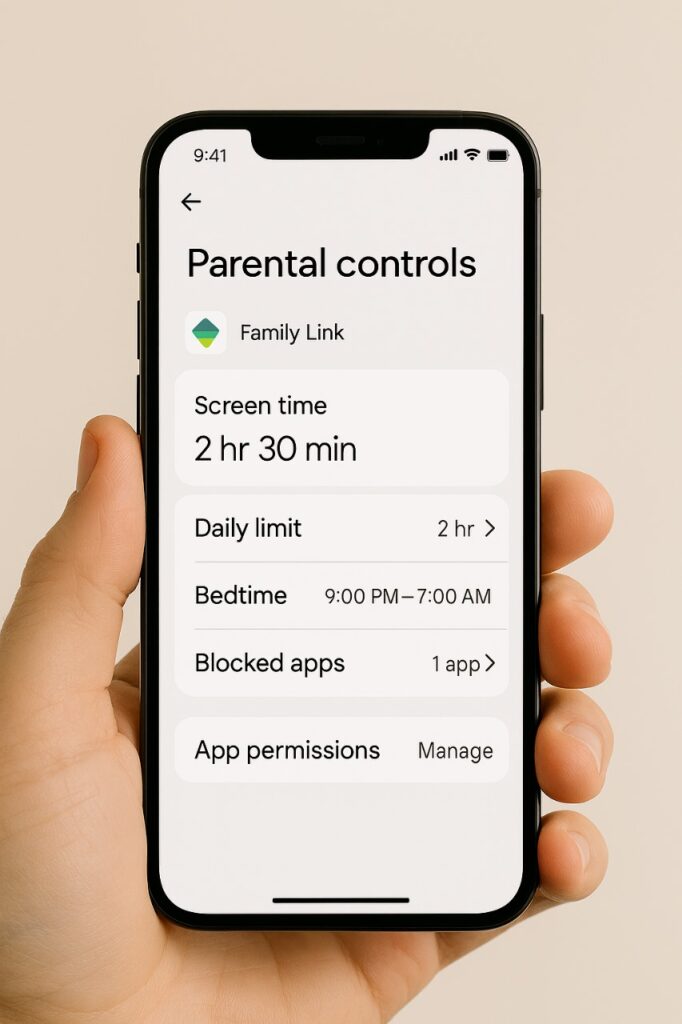
In today’s connected world, children are growing up surrounded by smartphones, tablets, gaming consoles, and smart TVs. While these devices can enhance learning and creativity, they also expose children to online risks. Implementing parental controls on smart devices is essential for digital parenting and maintaining children’s online safety.
This guide provides practical steps, screen time management tips, and digital security best practices to help parents create a safe and balanced online environment.
Why Parental Controls Are Crucial for Children’s Online Safety
Parental controls help you:
- Limit screen time and encourage healthy offline activities
- Block inappropriate content across apps, websites, and games
- Monitor digital activity to ensure online safety
By combining technology with open communication, parents can foster responsible digital habits.
How to Set Up Parental Controls on Smartphones and Tablets
Android Devices: Google Family Link and Security Tips
Android offers the Google Family Link app, which allows parents to:
- Manage app downloads and purchases
- Set daily screen time limits
- Track device location
Pro Tip: Keep your device firmware updated to prevent security vulnerabilities. For step-by-step instructions, see: How to Update Firmware on Smart Devices.
iOS Devices: Screen Time Setup for Safe Device Use
Apple devices feature Screen Time, which allows:
- Setting time limits for apps and devices
- Enabling content and privacy restrictions
- Creating a Screen Time passcode
Step: Settings → Screen Time → Turn On Screen Time → Content & Privacy Restrictions
Securing Smart TVs, Gaming Consoles, and Connected Devices
Most smart TVs and consoles include parental controls. Key actions include:
- Limiting game ratings and app usage
- Setting time restrictions for device usage
- Blocking in-app purchases
Managing Bluetooth Devices Safely
Children often use headphones, keyboards, or mice via Bluetooth. Monitoring Bluetooth connections is important to prevent unauthorized access. Learn more in our guide: Using Bluetooth Devices Safely.
Best Practices for Digital Parenting and Screen Time Management
- Use Strong Passwords:
Protect devices and accounts. Guide: Master Password Creation - Ensure Stable Internet Connections:
Keep devices online safely. Guide: Troubleshooting Wi-Fi Problems - Regular Monitoring:
Review activity logs and app usage frequently - Communicate Openly:
Discuss online safety and rules with your child
Tip: Take control today! Set up parental controls on all your children’s devices and ensure their digital safety.
Frequently Asked Questions (FAQs)
What are parental controls?
Parental controls are tools that allow parents to monitor and manage children’s device usage, set screen time limits, and block inappropriate content.
How do I set up parental controls on an iPhone?
Go to Settings → Screen Time → Turn On Screen Time, then set a passcode and configure restrictions under Content & Privacy Restrictions.
Are parental control apps effective?
Yes. When used correctly, parental control apps help manage children’s online activity. They should be complemented with open conversations about safe technology use.
Which parental control apps work best on Android and iOS?
Google Family Link (Android) and Apple Screen Time (iOS) are highly recommended for comprehensive monitoring and restrictions.
How can I balance screen time with offline activities?
Set daily limits, schedule tech-free periods, and encourage hobbies and physical activities. Consistent rules help maintain a healthy balance.
Conclusion
By applying parental controls across smartphones, tablets, gaming consoles, and smart TVs, parents can protect their children while fostering responsible digital behavior. Combine these tools with strong passwords, stable internet connections, and open communication for a safe and balanced digital environment.
Next Steps: Explore our self-help guides for deeper security tips:
- Update Firmware on Smart Devices
- Bluetooth Devices Safety
- Master Password Creation
- Troubleshooting Wi-Fi Problems
If you have any questions or require further assistance.