 Skip to content

Published on August 7, 2025 by SNSPro Global
Have you ever needed an important document, only to realize it’s saved on another device?
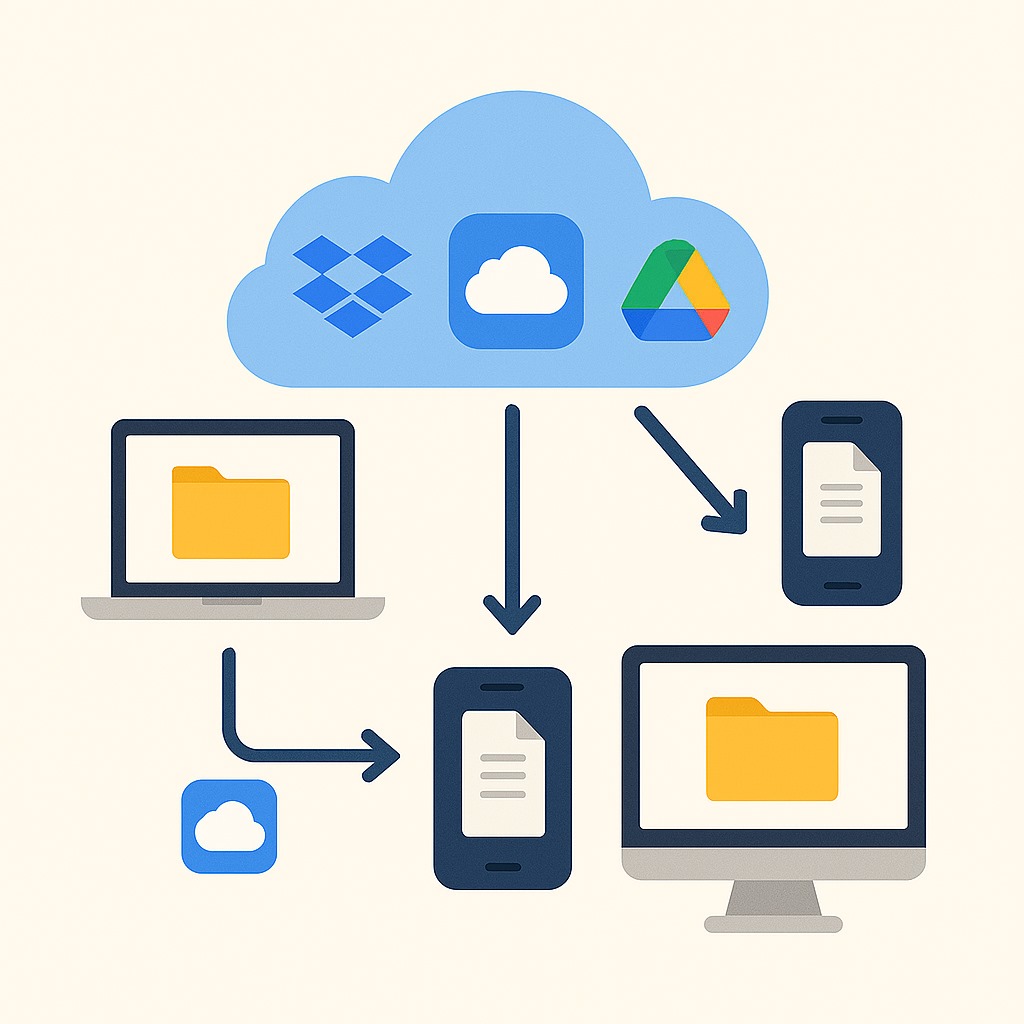
With cloud storage, that frustration disappears. Services like Dropbox, iCloud, and Google Drive let you keep your files in sync—accessible from your laptop, smartphone, or tablet anytime, anywhere.
This guide will walk you through how to sync your files using each of these popular services, with simple, step-by-step instructions.
Why Syncing Files Across Devices Matters
Think of file syncing as having a universal filing cabinet—available anytime, from any device. It’s more than just convenience. Here’s why it’s essential:
- Accessibility: Your files are always with you—on your phone, tablet, or computer.
- Peace of Mind: Files are backed up automatically to the cloud. If your device is lost or damaged, your data is safe.
- Efficiency: Start a project on your laptop and finish it on your phone—no emailing files to yourself.
- Collaboration: Share and work on documents in real time with colleagues, friends, or clients.
Dropbox: The Cross-Platform Syncing Solution
If you want a cloud storage service that works reliably across all major platforms,
Dropbox is a great option. It’s simple, user-friendly, and compatible with Windows, macOS, Linux, iOS, and Android.
How to Set Up Dropbox Sync
- Install the Dropbox App
• On your computer, go to www.dropbox.com and download the desktop app. It creates a “Dropbox” folder where syncing happens automatically.
• On mobile devices, download the Dropbox app from the App Store or Google Play. - Add Files to Dropbox
• Drag and drop any file into your Dropbox folder on desktop to sync it.
• On mobile, open the Dropbox app and upload files directly from your phone. - Access Files Anywhere
Once a file is in Dropbox, it becomes instantly available on all your devices. Just open the app or log into your account online.
Tip: Use Dropbox’s file and folder sharing tools to collaborate with others effortlessly.
iCloud Drive: Best for Apple Users
For users in the Apple ecosystem, iCloud Drive is the most seamless syncing option.
It’s deeply integrated into iOS, iPadOS, and macOS, and works in the background with little setup.
How to Sync with iCloud Drive
- Enable iCloud Drive on All Devices
Make sure you’re signed in with the same Apple ID, then:
• iPhone/iPad: Go to Settings > [Your Name] > iCloud > iCloud Drive and toggle it on.
• Mac: Go to System Settings > Apple ID > iCloud, then check iCloud Drive. - Sync Desktop & Documents Folders (Mac only)
In iCloud settings on your Mac, enable the option to sync your Desktop and Documents folders. Anything saved there will appear on your other Apple devices automatically. - Access Files on the Go
• On iPhone or iPad, use the Files app to view your iCloud Drive.
• On other devices, go to iCloud.com and sign in.
Google Drive: Ideal for Google Users & Collaboration
If you already use Gmail, Google Docs, or Sheets, or if you often collaborate with others, Google Drive is a powerful and flexible solution.
It also offers more free storage than Dropbox or iCloud.
How to Sync with Google Drive
- Install Google Drive on Your Devices
• Download Google Drive for desktop from drive.google.com. It creates a Google Drive folder on your computer.
• On your phone or tablet, install the Google Drive app from the App Store or Google Play. - Upload Your Files
• On desktop, simply drag and drop files into the Google Drive folder.
• On mobile, open the app, tap the + icon, and select Upload to add files from your device. - Access and Collaborate Anywhere
• View, organize, and edit files from any device using the app or drive.google.com.
• Create and collaborate in real time using Google Docs, Sheets, and Slides—all within Google Drive.
Choose the Best Cloud Storage for Your Needs
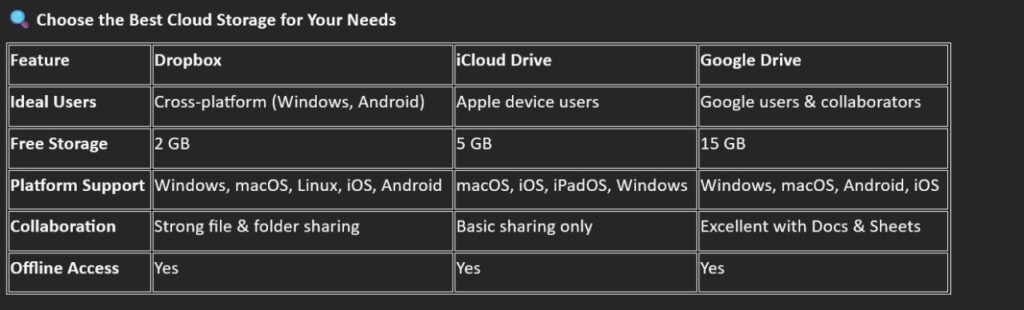
Feature Dropbox iCloud Drive Google Drive
Ideal Users Cross-platform (Windows, Android) Apple device users Google users & collaborators
Free Storage 2 GB 5 GB 15 GB
Platform Support Windows, macOS, Linux, iOS, Android macOS, iOS, iPadOS, Windows Windows, macOS, Android, iOS
Collaboration Strong file & folder sharing Basic sharing only Excellent with Docs & Sheets
Offline Access Yes Yes Yes
Pro Tips for Seamless Syncing
- Keep Your Apps Updated: Ensure you have the latest security and performance improvements.
- Organize Your Files: Use folders and consistent file names for easy access.
- Enable Two-Factor Authentication (2FA): Add extra security to protect your data.
- Monitor Storage Limits: Consider upgrading if you regularly sync large files.
Conclusion:
No matter which cloud storage platform you choose—Dropbox, iCloud, or Google Drive—syncing your files across devices has never been easier. With just a few setup steps, you’ll enjoy the convenience of secure, anytime access to your important documents, photos, and more.
Choose the service that fits your workflow, set it up once, and stay effortlessly connected—wherever you go.
If you have any questions or require further assistance.