 Skip to content

Published on September 5, 2025 by SNSPro Global
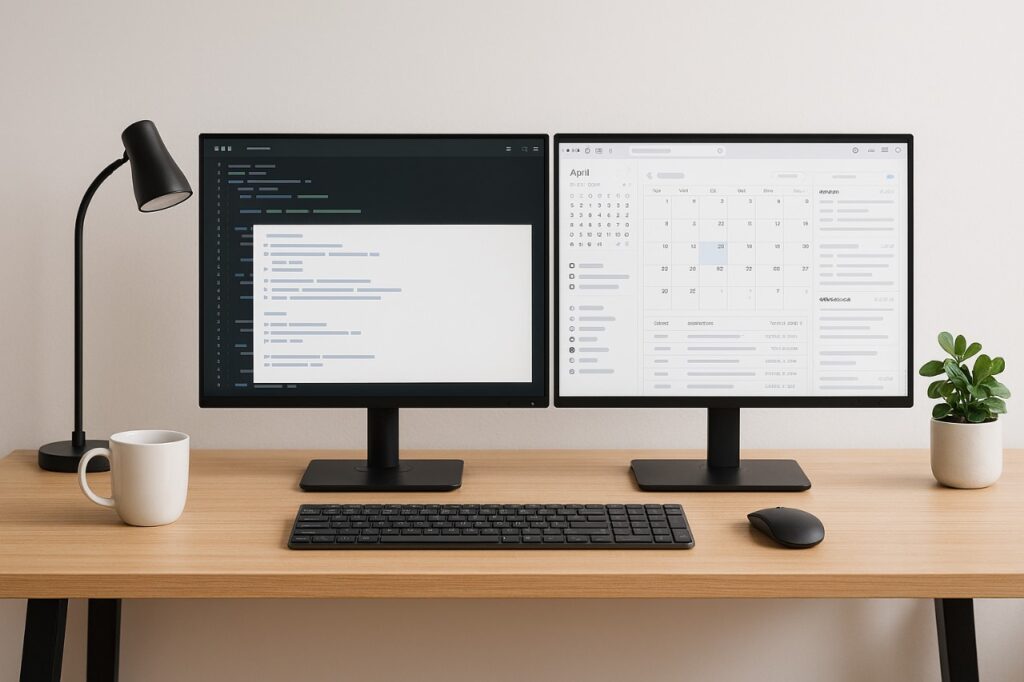
In today’s fast-paced digital world, setting up dual monitors isn’t just a luxury—it’s a productivity game-changer. Whether you’re working from home or in an office, a dual-monitor setup can streamline your workflow, reduce task-switching, and enhance focus.
1. Check Hardware Compatibility Before Setting Up Dual Monitors
Before diving into the setup, ensure your computer supports multiple displays:
- Ports to Check: Look for HDMI, DisplayPort, USB-C, or Thunderbolt ports.
- Graphics Support: Most modern GPUs can handle two monitors; verify your system’s specifications.
- Monitor Compatibility: Aim for monitors with similar sizes and resolutions for a seamless experience.
If you’re unsure about your system’s capabilities, consider reading our guide on How to Change Default Apps on Windows, Mac, Android, and iPhone.
2. Choose the Best Monitors for Your Productivity Needs
Select monitors that align with your work requirements:
- Resolution: Opt for at least 1080p; higher resolutions like 4K are ideal for detailed tasks.
- Size: Matching monitor sizes reduce visual strain.
- Panel Type: IPS panels offer better color accuracy and viewing angles.
3. Connect Your Dual Monitors Properly
Depending on your system:
- Windows: Right-click on the desktop → Display Settings → Detect.
- Mac: Apple Menu → System Preferences → Displays → Arrangement.
Ensure both monitors are recognized and adjust their positions to match your physical setup.
4. Arrange Your Workspace for Maximum Efficiency
Arrange your monitors to suit your tasks:
- Side-by-Side: Ideal for multitasking and comparing documents.
- Stacked: Saves desk space and is great for coding or monitoring data.
- Curved Monitors: Provide a more immersive experience, reducing neck strain.
For ergonomic desk setups, refer to our article on How to Use Voice Assistants (Siri, Google Assistant) Productively.
5. Adjust Display Settings for Best Performance
Customize your display settings for optimal performance:
- Resolution: Set both monitors to the same resolution for consistency.
- Orientation: Choose landscape or portrait mode based on your tasks.
- Primary Display: Set your main monitor to be the primary display.
6. Use Accessories to Enhance Your Productivity
Consider adding:
- Monitor Stands or Arms: Free up desk space and adjust monitor heights.
- Keyboard and Mouse: Ergonomic options reduce strain.
- Cable Management: Keep your workspace tidy and organized.
For more on optimizing your workspace, check out our article on How to Use Bluetooth Devices Efficiently.
Conclusion: Boost Productivity with Dual Monitor Setup
Setting up dual monitors can significantly boost your productivity by providing more screen space and reducing the need to switch between tabs. By following the steps outlined above, you can create an efficient and ergonomic workspace tailored to your needs.
For more tips on enhancing your work environment, explore our Self Help section, which offers a wealth of articles on optimizing your digital workspace.
Frequently Asked Questions (FAQs)
How do I connect two monitors to my laptop?
Use HDMI, DisplayPort, or USB-C ports. If your laptop has only one port, consider using a docking station.
Can dual monitors improve productivity?
Yes, studies show that dual monitors can increase productivity by reducing task-switching and providing more screen real estate.
What is the best monitor resolution for dual screens?
1080p is standard, but 1440p or 4K is preferable for tasks requiring detailed visuals.
How do I manage multiple windows effectively?
Use keyboard shortcuts like Windows + Arrow keys to snap windows to sides.
Are curved monitors better for dual setups?
Curved monitors can reduce neck strain and provide a more immersive experience, especially in side-by-side configurations.
If you have any questions or require further assistance.