 Skip to content

Published on September 3, 2025 by SNSPro Global
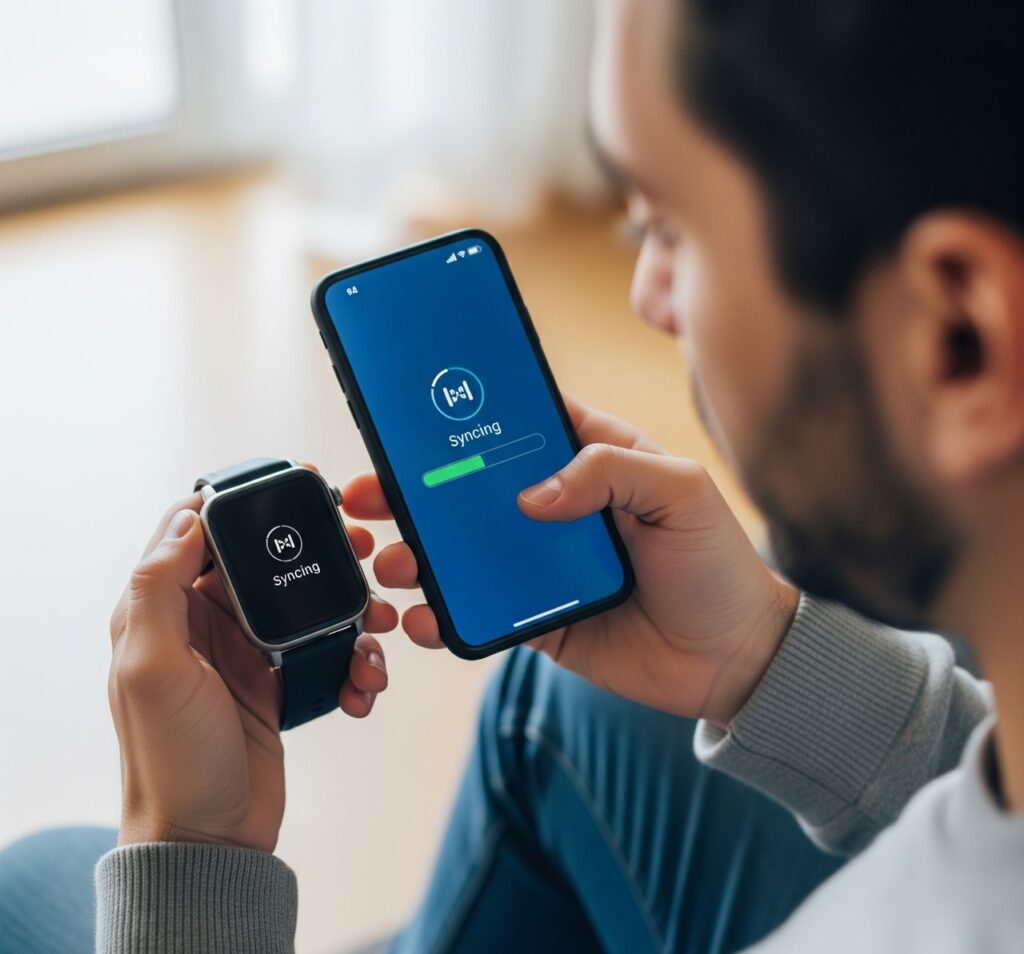
Syncing your smartwatch with your phone is easier than you think. Whether you own an Apple Watch, Samsung Galaxy Watch, or any other wearable, pairing it properly ensures you never miss a call, message, or alert. In this guide, you’ll learn how to sync your smartwatch with your phone and customize notifications to suit your lifestyle.
Step 1: Check Compatibility and Install the App
Before pairing, make sure your smartwatch is compatible with your smartphone. Most smartwatches require a companion app.
- iPhone users: Install Apple Watch App
- Android users: Install Galaxy Wearable App or the watch’s official app
Tip: Keep Bluetooth turned on and ensure both devices are charged. For more guidance on using technology safely, see our Speed Up Safari on MacBook: Simple Tips for Faster Browsing article.
Step 2: Pair Your Smartwatch with Your Phone
- Open the smartwatch app on your phone.
- Select “Pair a New Device”.
- Your phone will search for the watch. Tap to connect.
- Confirm any pairing codes that appear on both devices.
Now your smartwatch is synced and ready to customize.
Step 3: Customize Notifications
Smartwatch notifications help you stay updated without checking your phone constantly.
- Open the smartwatch app on your phone.
- Go to Settings → Notifications.
- Enable alerts for calls, messages, and apps you use most.
- Choose vibration patterns or sounds for each type of notification.
Tip: Use Do Not Disturb mode during meetings or sleep for a better experience. For advice on managing notifications effectively, read our Time Management & Productivity Tips article.
Step 4: Optimize App Permissions
For full functionality:
- Grant notifications access
- Allow background app refresh
- Enable location services if required
This ensures all alerts sync in real-time. Learn more about App Permissions and Device Security in our self-help resources.
Step 5: Test and Troubleshoot
- Send a test message or call to your smartwatch.
- If notifications don’t appear, restart both devices.
- Re-pair if necessary.
If you encounter frequent issues, our Troubleshooting Smart Device Connectivity Issues: The Complete Smart Home Guide can help resolve them quickly.
Conclusion
Syncing your smartwatch with your phone and customizing notifications is simple yet essential for a smart, connected lifestyle. Following these steps ensures you get alerts in real-time, control app notifications, and enjoy a seamless experience.
For more guidance on maximizing your smart devices, explore our Self Help Resources for seniors and tech enthusiasts.
Frequently Asked Questions (FAQs)
How do I know if my smartwatch is compatible with my phone?
Check the manufacturer’s website or the smartwatch app for supported devices.
Can I sync multiple smartwatches with one phone?
Most apps allow only one watch to be connected at a time.
How do I stop notifications from a specific app?
Go to the smartwatch app → Notifications → Disable the app’s toggle.
Why is my smartwatch not showing notifications?
Ensure Bluetooth is on, app permissions are granted, and your watch is paired correctly.
If you have any questions or require further assistance.