 Skip to content

Published on August 21, 2025 by SNSPro Global
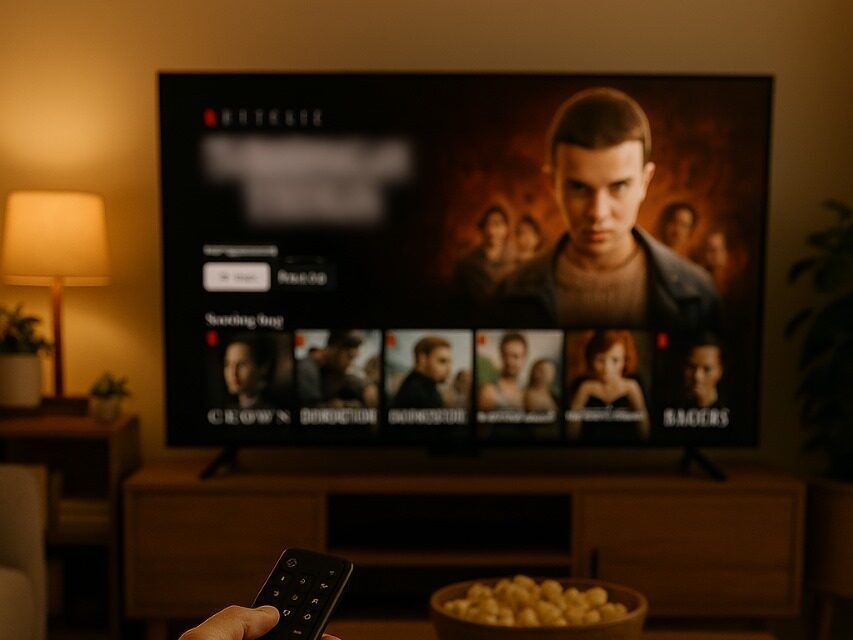
Setting up a smart TV or streaming device might seem intimidating at first, but don’t worry—it’s actually pretty simple. Whether you’re plugging in a brand-new smart TV, or hooking up a Chromecast, Fire Stick, or Roku, this guide will walk you through the basics to get you streaming in no time.
What You’ll Need
Before you start, make sure you have:
- A TV with an available HDMI port
- A steady Wi-Fi connection
- Your remote or mobile device (for setup)
- An account for your streaming device or services (like Google, Amazon, Roku, Netflix, etc.)
If You’re Setting Up a Smart TV
Most modern TVs come with streaming apps built in, so the setup is pretty straightforward:
- Plug It In
Connect your TV to a power source and turn it on using the remote. - Connect to Wi-Fi
During the first-time setup, the TV will prompt you to choose your language and Wi-Fi network. Select your network and enter your password. - Sign In
You may be asked to sign in to the TV manufacturer’s account system (Samsung, LG, etc.). This unlocks updates, app downloads, and more features. - Install Your Apps
Navigate to the app store on your TV (usually called “Smart Hub,” “LG Content Store,” or something similar), then download apps like Netflix, Hulu, Disney+, or YouTube. - Start Streaming!
Open your apps, log in, and enjoy. You can also rearrange apps on your home screen if you want quick access to your favorites.
If You’re Using a Streaming Device
For Chromecast (with Google TV)
- Plug it in: Connect the Chromecast to your TV’s HDMI port and plug the power cable into a wall outlet.
- Switch the TV input: Use your TV remote to switch to the correct HDMI input.
- Set up with the Google Home app: Download the Google Home app on your phone, and follow the on-screen instructions to connect your Chromecast to Wi-Fi and your Google account.
- Install apps: Use the on-screen menu to browse or search for apps to install.
- Cast or stream: You can use your phone to cast content, or use the remote to navigate.
For Amazon Fire Stick
- Plug it in: Connect the Fire Stick to your HDMI port and plug it into power.
- Pair the remote: The remote should automatically pair. If not, hold the “Home” button for 10 seconds.
- Connect to Wi-Fi: Follow the on-screen prompts to select and connect to your network.
- Log in to your Amazon account: This will sync your apps and preferences.
- Download apps: Use the search function or browse to find your favorite streaming services.
For Roku
- Plug it in: Connect your Roku device to the TV and power it up.
- Select HDMI input: Use your TV remote to switch to the right HDMI input.
- Pair the remote: Follow the on-screen instructions if it doesn’t pair automatically.
- Connect to Wi-Fi: Choose your network and enter your password.
- Create or log in to a Roku account: You’ll need this to add channels and apps.
- Add channels: Roku calls streaming apps “channels.” Add what you want through the Roku Channel Store.
Tips for All Devices
- Update software: Always run any updates when prompted for the best performance.
- Use voice search: Many remotes now have voice assistants to help you find shows faster.
- Parental controls: Set them up in your device settings if kids will be watching.
- Use the mobile app: Most devices (Google Home, Fire TV, Roku app) allow for remote control and casting via your phone.
Whether you’re upgrading your old setup or going smart for the first time, setting up your TV or streaming device doesn’t have to be a chore.
With just a few steps, you’ll be watching your favorite shows, movies, and more in no time.
Happy streaming!
If you have any questions or require further assistance.