 Skip to content

Published on September 1, 2025 by SNSPro Global
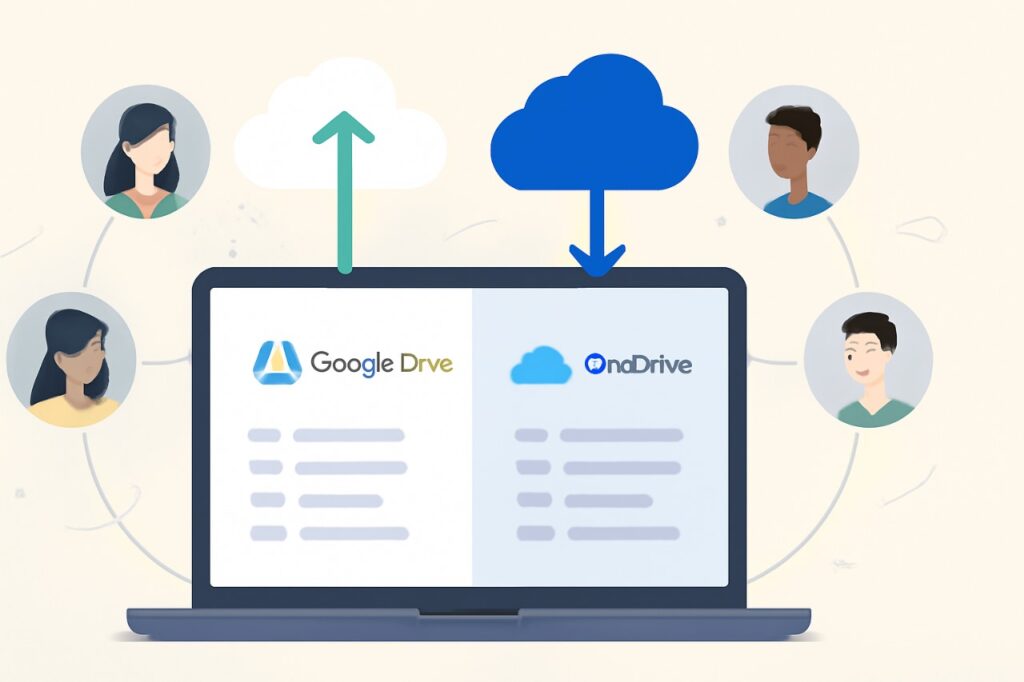
Storing and sharing files securely has never been easier thanks to cloud storage solutions like Google Drive and OneDrive. Whether you need to back up important documents or collaborate with others, these platforms offer efficient ways to manage your files. This article explains how to store files using Google Drive and OneDrive, share them effortlessly, and maximize their features for personal or business use.
Why Choose Google Drive or OneDrive for File Storage?
Google Drive and OneDrive are top cloud storage solutions trusted worldwide. They allow you to store files online safely, sync files across devices, and share folders or documents with ease. Whether you want to share files with colleagues or friends, both platforms provide flexible sharing permissions.
How to Store Files on Google Drive and OneDrive
Storing Files on Google Drive
- Sign in to your Google Drive account.
- Click the “+ New” button to upload files or folders.
- Drag and drop files for quick upload.
- Use the desktop app to sync files automatically.
Storing Files on OneDrive
- Log in to OneDrive via your Microsoft account.
- Click “Upload” to add files or folders.
- Utilize the OneDrive sync client for seamless backup.
- Organize files into folders for easier access.
How to Share Files Securely Using Google Drive and OneDrive
Sharing Files on Google Drive
- Right-click the file or folder, then select “Share.”
- Enter email addresses or create a shareable link.
- Set permission levels: Viewer, Commenter, or Editor.
- Use expiration dates on shared links for added security.
Sharing Files on OneDrive
- Select the file/folder, and click “Share.”
- Invite people by email or generate a link.
- Choose permissions: Can Edit or Can View.
- Enable password protection on shared links when needed.
Tips for Effective File Sharing and Storage
- Always review sharing settings to protect sensitive data.
- Use a specific search query like “best way to share folders on Google Drive securely” to find targeted help.
- Sync your files regularly to avoid data loss.
- Collaborate in real-time with integrated Google Docs or Microsoft Office apps.
- Create a clear file naming convention for easier searching and organization.
- Enable two-factor authentication (2FA) on your account for an extra layer of security.
Frequently Asked Questions (FAQs): Your File Sharing Questions Answered
How do I share a folder on Google Drive?
Right-click the folder, click “Share,” enter the email of the person, and set the permission level (Viewer, Commenter, or Editor). Then click Send.
Can I share OneDrive files with people who don’t have Microsoft accounts?
Yes, by generating a shareable link which anyone can access without an account, based on the permission level you set.
What are the differences between sharing permissions on Google Drive and OneDrive?
Both offer “view” and “edit” permissions, but Google Drive includes a “comment” option and OneDrive allows password protection on links.
How can I store files safely in the cloud?
Use strong passwords, enable two-factor authentication, regularly review sharing permissions, and back up important files frequently.
Conclusion
In conclusion, both Google Drive and OneDrive provide robust, secure, and user-friendly platforms for cloud storage and file sharing. By following these simple steps, you can effectively store, organize, and share your files for both personal and business needs. Start securing your files today and experience the benefits of seamless cloud collaboration.
If you have any questions or require further assistance.