 Skip to content

Published on August 22, 2025 by SNSPro Global
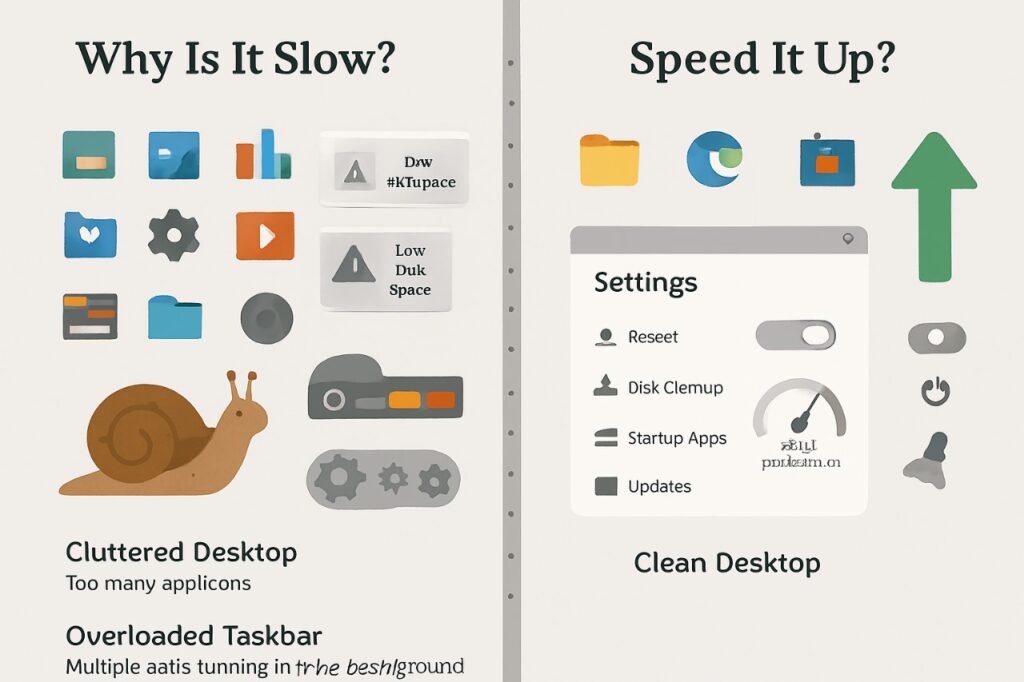
Why Is My Windows 11 Slow? The Common Reasons.
Think of your computer like a busy office. Too much going on, or too much clutter, and things grind to a halt.
Here are the usual suspects:
- Too Many Programs: Lots of apps open, especially in the background, slow things down.
- Too Many Startup Programs: Programs launching automatically when you turn on your computer hog resources.
- Full Hard Drive: Your main drive (usually “C:”) needs space to work efficiently.
- Outdated Software: Old Windows versions or drivers can cause problems.
- Fancy Visuals: Windows 11’s cool animations use up computer power.
- Junk Files: Temporary files build up and take up space.
- Malware: Nasty software can secretly slow your PC.
Now, let’s fix it!
Easy Steps to Speed Up Windows 11
Step 1: Restart the system.
- It’s the easiest and often most effective fix.
- A simple restart clears out temporary issues and gives your computer a fresh start.
- How to: Click Start, then the Power icon, and choose Restart.
Step 2: Disable Unnecessary Programs from Startup
Many programs launch when your computer does, slowing it down. Let’s tell them to wait.
How to:
- Right-click Start, choose Task Manager.
- Click the “Startup apps” tab.
- Find programs you don’t need right away (e.g., Spotify, Discord).
- Click on the program, then click “Disable”. You can still open them later!
Step 3: Free Up Space on Your Hard DriveYour computer needs room to breathe. A full drive makes it slow.
How to (Disk Cleanup):
- Click Search, type “Disk Cleanup,” and open the app.
- Make sure your “C:” drive is selected, then click “OK”.
- Check boxes like “Temporary files,” “Recycle Bin,” and “Temporary Internet Files.”
- Click “OK”, then “Delete files”.
How to (Uninstall Apps):
- Click Start, then Settings, then Apps, then “Installed apps.”
- Scroll and uninstall programs you never use by clicking the three dots next to them.
Step 4: Keep Windows and Drivers Updated
Updates from Microsoft can improve performance and fix problems.
How to:
- Click Start, then Settings, then Windows Update.
- Click “Check for updates.” Install any found and restart if needed.
- Additionally, check “Advanced options,” then “Optional updates” for drivers.”
Step 5: Adjust Visual Effects for Speed
Windows 11 looks nice, but its visuals consume power and system resources. They can be disabled for better performance
How to:
- Click Search, type “Adjust the appearance and performance of Windows,” and select it.
- In the “Performance Options” window, choose “Adjust for best performance.”
- Click “Apply” then “OK.” It might look less flashy, but it’ll feel faster.
Step 6: Set Your Power Plan to High Performance
Your computer has settings for saving power or boosting performance. For optimal speed, choose the performance option.
How to:
- Click Search, type “Control Panel,” and open it.
- Go to “Hardware and Sound,” then “Power Options.”
- Click “Show additional plans” if needed, and select “High performance.”
- Note for laptops: This uses more battery, so switch back to “Balanced” if not plugged in.
Step 7: Manage Background Apps
Some apps run in the background even when you’re not using them.
How to:
- Click Start, then Settings, then Apps, then “Installed apps.”
- For many apps, click the three dots, select “Advanced options.”
- Under “Background apps permissions,” choose “Never” for apps you don’t need running constantly.
If you have any questions or require further assistance.